
Skip to navigation

Chat and approve requests

Follow the agent live, answer what it asks and send follow-ups

View as Markdown

The session page shows the agent working live. Approve what it asks, answer its questions and steer it with follow-ups.
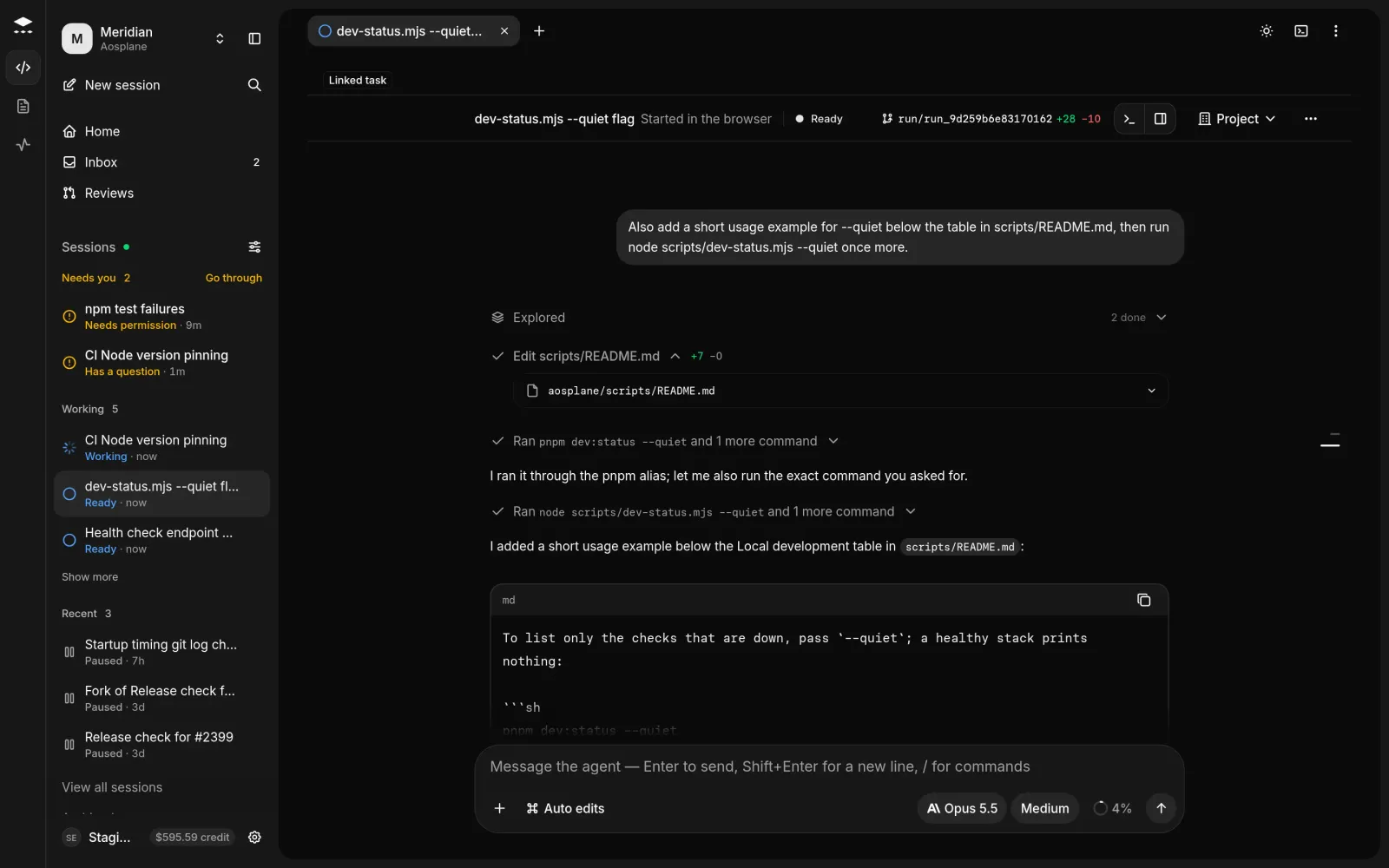
Session page with the title, status and Session actions button at the top, the conversation with file edits and commands, and the message box at the bottom
A session page

Answer the agent

When the agent needs you, the status says Needs approval, Question for you or Plan to review.
1

Find the request

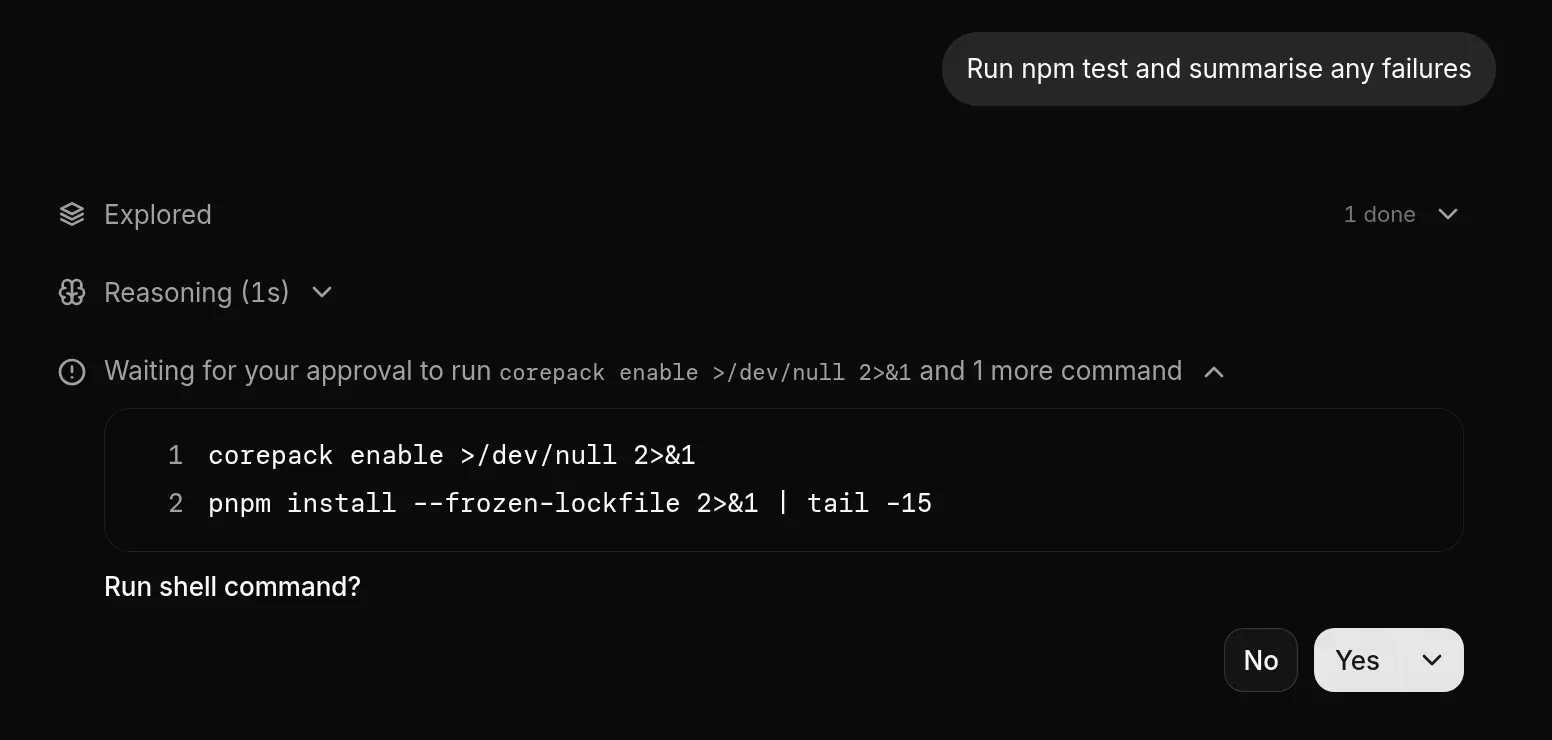
Look for Waiting for your approval. It says what the agent wants, such as Run shell command? or Edit file?, with the details.

2

Approve or decline

Pick one of the agent’s options. ⌘Enter allows once, Esc declines.

3

Answer questions and plans

Pick an answer or type one in Or type a different answer…. For an Implementation plan, choose Approve and implement, Request changes or Discard.

A Run shell command? request in the conversation showing the command and the agent's answer options
A permission request

Send a follow-up

Type in the box at the bottom and press Enter. / lists the agent’s commands and @ mentions a file.

While the agent works, Enter queues your message for its next step or turn. ⌘Enter interrupts instead. Stop turn (or Esc in an empty box) stops the turn.

Share the session

1

Open visibility

Choose the visibility button at the top of the session to open Who can see this session.

2

Pick who

Choose Project, Private or Selected teammates…, then pick teammates and choose Share with N teammates.

Good to know

  • Only the person who started a session and organization admins can change who sees it.
  • Everyone who can see a session can drive it. N here shows who’s in it and who is Driving this turn.
  • Viewers can answer permission requests but can’t send messages. The first answer counts, and an unanswered request expires as declined.
  • Approvals the agent shouldn’t ask for again are in the project’s Settings › Saved approvals, where you can Revoke them.
ItemWhat it does
Open brief / Open activityThe session’s brief, or everything it did. See Activity.
New chat in this sandboxA new session in the same sandbox.
Fork sessionA new session with this conversation. Fork from here under a message forks from that point.
Continue in…Hands the conversation and uncommitted work to another agent in the project.
Desktop notificationsBrowser alerts when the session needs you, finishes your turn or fails.
Copy link to sessionA link for anyone who can see the session.
Resume sandbox / Keep awakeRestart a paused sandbox, or keep it awake for 1, 8 or 24 hours (billed).
ArchiveHides the session. See Stop a session and find it later.
Report session…Sends us a problem report. See Report a problem.