
Billing and plans
AOSplane bills your organization for the time sandboxes run, plus extras such as code reviews. Each plan includes some usage credit every month, and you can buy more. The AI model itself is billed by your AI provider, through the AI account you connected.
Check your balance and spend
Choose Billing in the account menu at the bottom of the sidebar (it shows your balance), or Settings › Billing. The Overview tab shows:
- Credit balance: what’s left to spend, split into Included credit, Coupon credit, Purchased credit and any Unpaid usage.
- Plan: your plan, when it Renews, the included credit, projects in use, and the monthly code reviews and PM specs. Change plan opens the Plans tab.
- Spend this period: Spent so far, the projected total, the Daily average and a daily chart, then Included this period, Spend by meter and Credit activity.
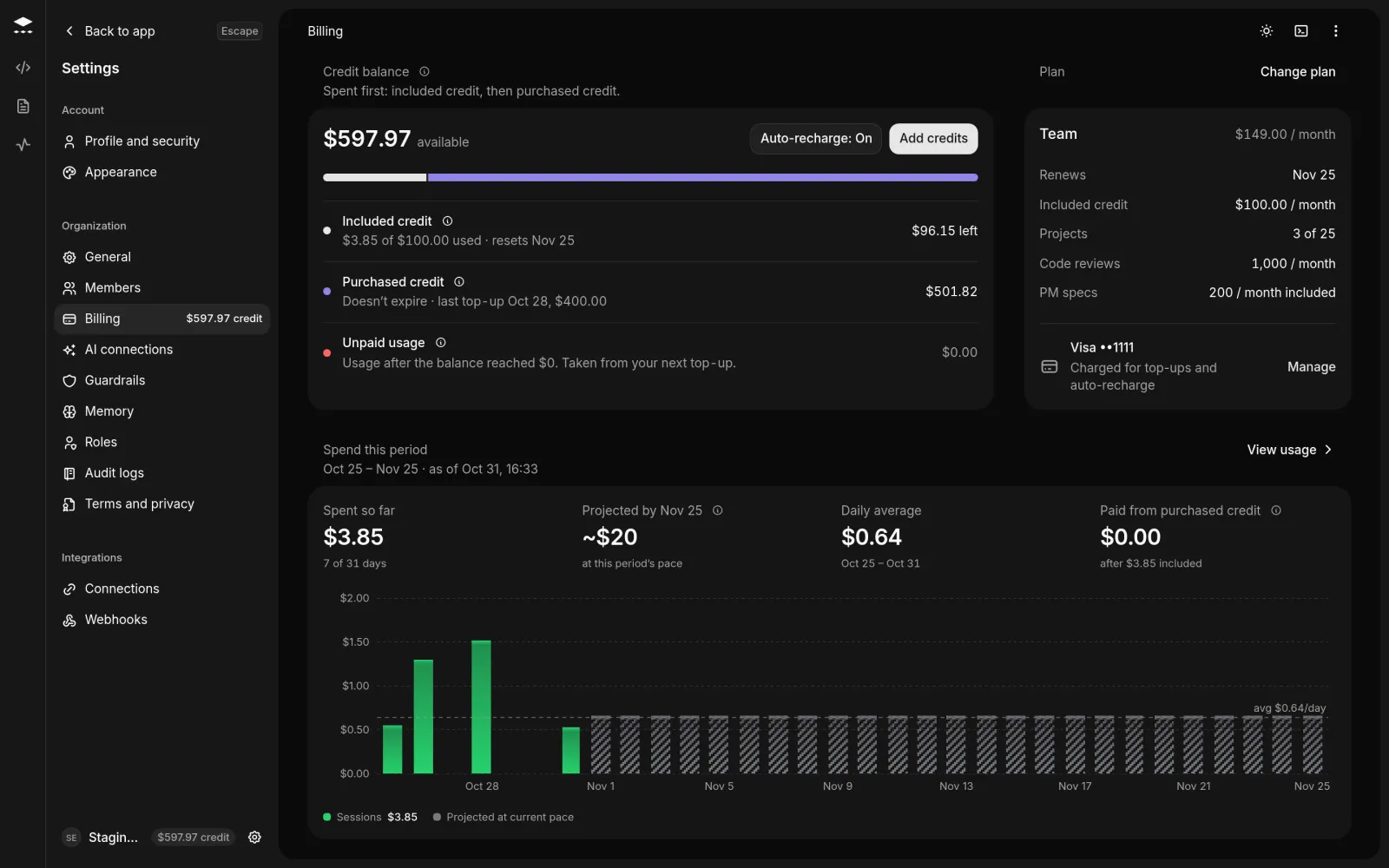
The other tabs are Usage, Credits, Add-ons, Invoices & receipts, Payment, Plans and Spend controls. Download statement at the top gets this month’s statement, or an earlier month from its menu.
Add credits
On Free you can’t buy credit. The Overview shows Upgrade to buy credits instead.
How credit is used
- Included credit comes with your plan each billing period and is used first. Unused credit doesn’t carry over.
- Coupon credit comes from Redeem a code on the Credits tab. It’s used before purchased credit and lapses if it isn’t spent in time.
- Purchased credit never expires.
When it’s all gone, usage pauses on Free until the period resets. On Starter and Team, new sessions are refused and running ones stop shortly after. Usage in between shows as Unpaid usage and is paid off from your next top-up. Automatic recharge tops up before that happens. Enterprise usage is invoiced.
Plans
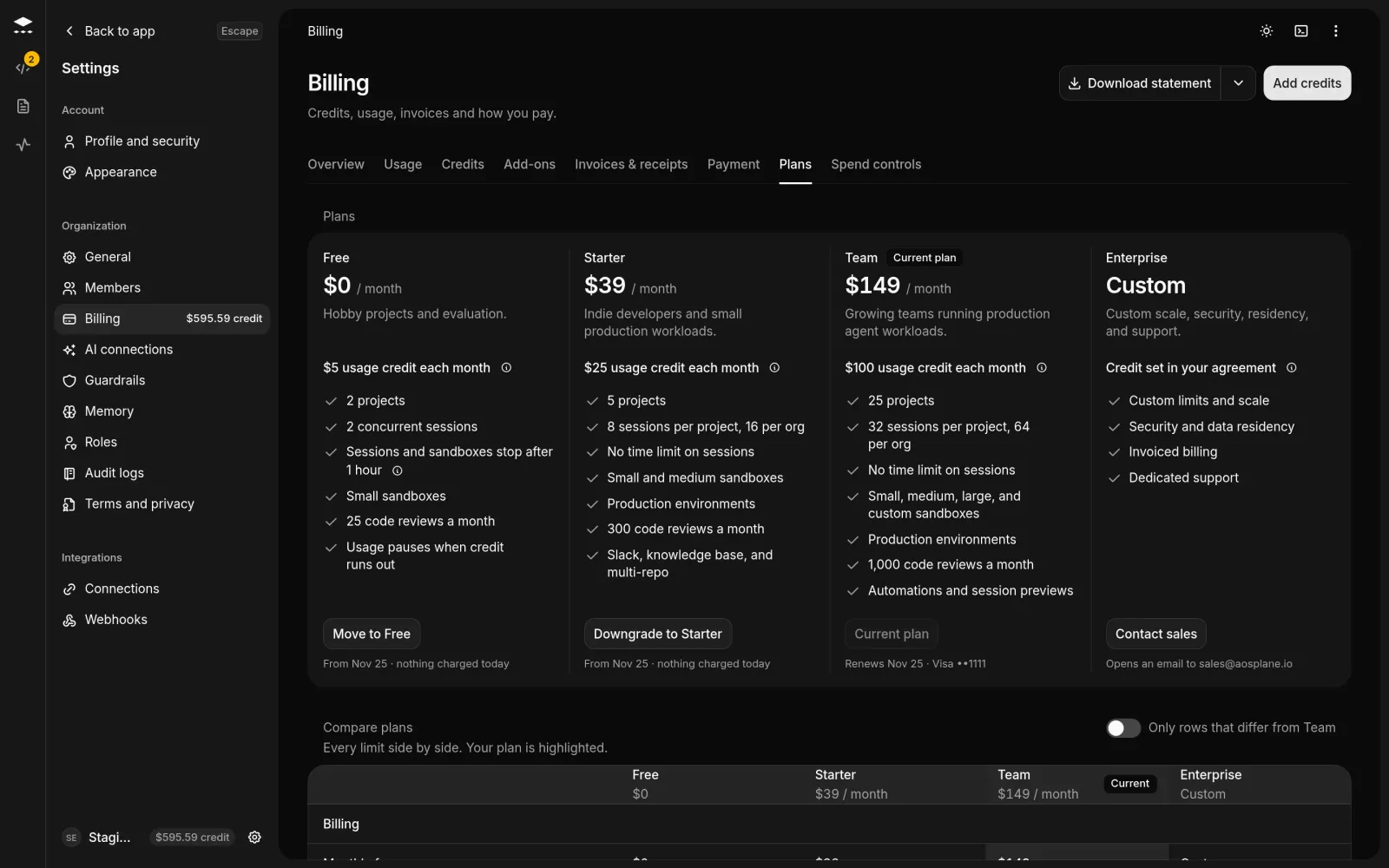
Starter adds Slack, the knowledge base and multi-repo sessions. Team adds automations and session previews. Compare plans, on the Plans tab, lists every limit side by side.
Change your plan
Pick a plan
On the Plans tab, choose Upgrade to, Downgrade to or Move to followed by the plan’s name. For Enterprise, choose Contact sales.
- Upgrades start now. You pay the difference for the rest of the period, and need a payment method on file.
- Downgrades start when the period ends, and nothing is charged today. You can keep your plan from the banner until then.
- On the day you move to Free, sandboxes that have run longer than 1 hour are snapshotted and stopped.
- Purchased credit stays on your balance.
Usage, invoices and payment
- Usage: spend for this period, the previous one or your own dates, grouped by Day, Project or Meter, with Export CSV. Sandbox time costs 0.432 an hour for Shrimp, 1.728 for Shark and $3.456 for Whale. How each meter is priced lists every other price.
- Invoices & receipts: Upcoming estimates, Where documents go (billing email, company name, tax ID), and every invoice and receipt with its status, such as Paid, Open or Past due.
- Payment: your card (Replace card, Manage card), Recent card payments, Billing details and Automatic recharge. If a payment fails, a banner asks you to update your card.
Add-ons
The Add-ons tab has:
- Agents you pay for per use: PR review, the product manager and the SRE assistant. Each uses your plan’s monthly allowance first, then your balance.
- Add-ons with a monthly fee: Verified PRs, 0.10 a minute.
- Data and included features: Agent activity (paid plans), and what your plan includes at no extra charge.