
Choose AI accounts for a project
Decide which AI accounts sessions in a project may use
A team AI account only runs sessions in the projects it’s added to. Each project also decides whether members may use their own accounts.
Only Admins and the Owner can change these settings. Anyone can set their own default.
Add a team account to a project
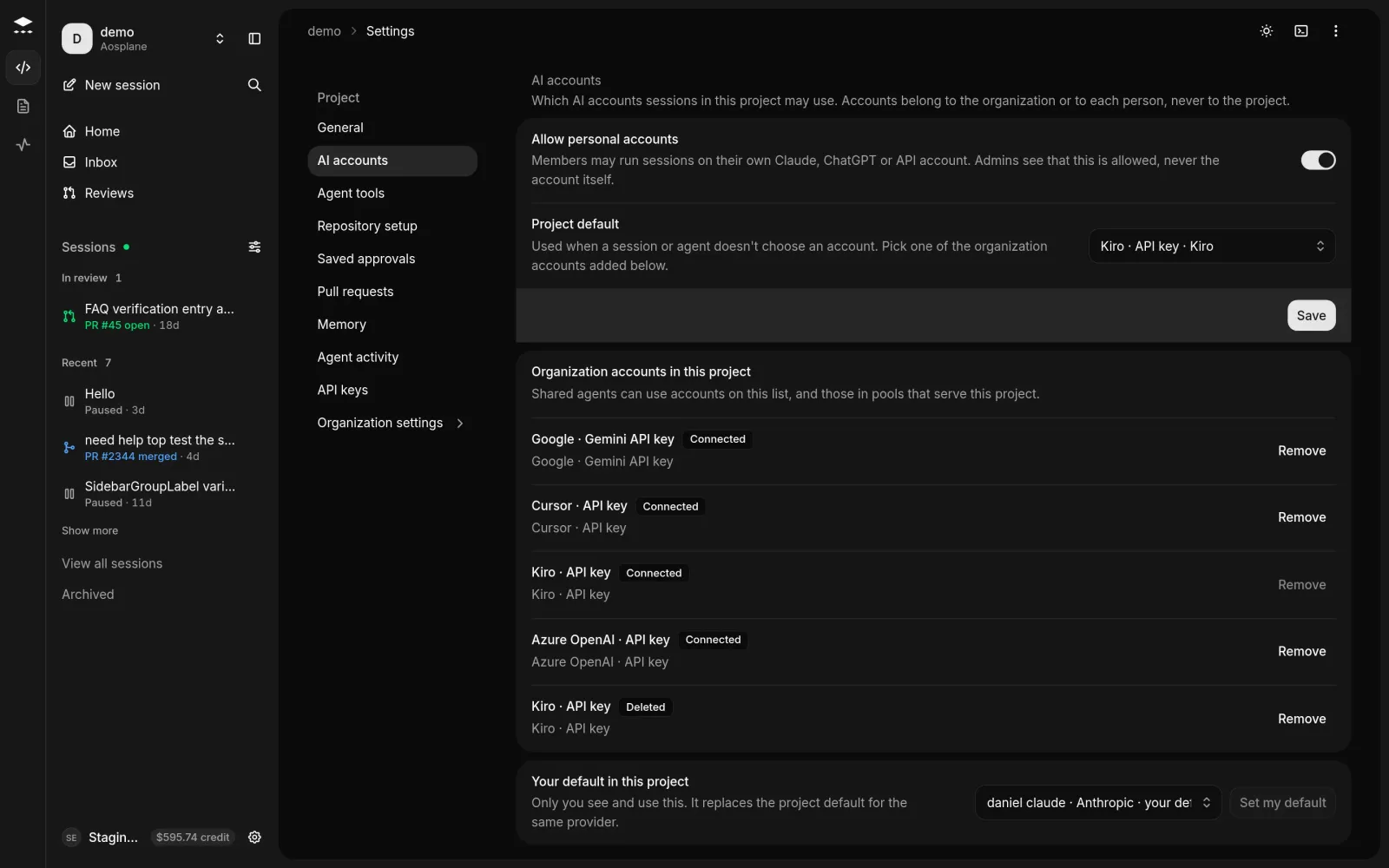
To take one out, choose Remove and confirm. The account stays in the organization.
Set defaults
- Allow personal accounts (on by default) lets members run sessions on their own accounts. Admins see that it’s allowed, never the accounts.
- Project default is used when neither the session nor its agent picks an account. Choose Save after changing either setting.
- Your default in this project lets you pick one of your own accounts and choose Set my default. Only you use it.
Which account a session uses
You can pick an account when you start a session: choose Change beside the agent in the model menu. See Start a session. Otherwise AOSplane uses the first of these that works with the agent:
- The team account set on the agent.
- Your default in this project.
- The project default.
- A team account added to the project or in a team order that serves it.
Good to know
- Team order at the top shows the accounts each agent’s sessions here start on. Admins choose Edit the order to change it.
- You can’t remove the project default. Choose another default first.