
Reviews
Read, review and merge pull requests, and let AOSplane review them for you
Reviews lists the open pull requests on your project’s linked repositories. Read them, get an AI review, leave your own and merge, without leaving AOSplane. It can also review every new pull request automatically.
Every plan includes code review. Viewers can read pull requests but can’t review or merge them. Only the account Owner changes the automatic review settings.
Review a pull request
Open a pull request
Select a row. To jump to one, paste its GitHub link into the search box and press Enter.Read the changes
Use Files changed, Conversation, Commits and Description. Switch diffs between Unified and Split.Get an AI review
Choose AI review. AOSplane reviews the latest commit and posts its findings in Conversation and as line comments.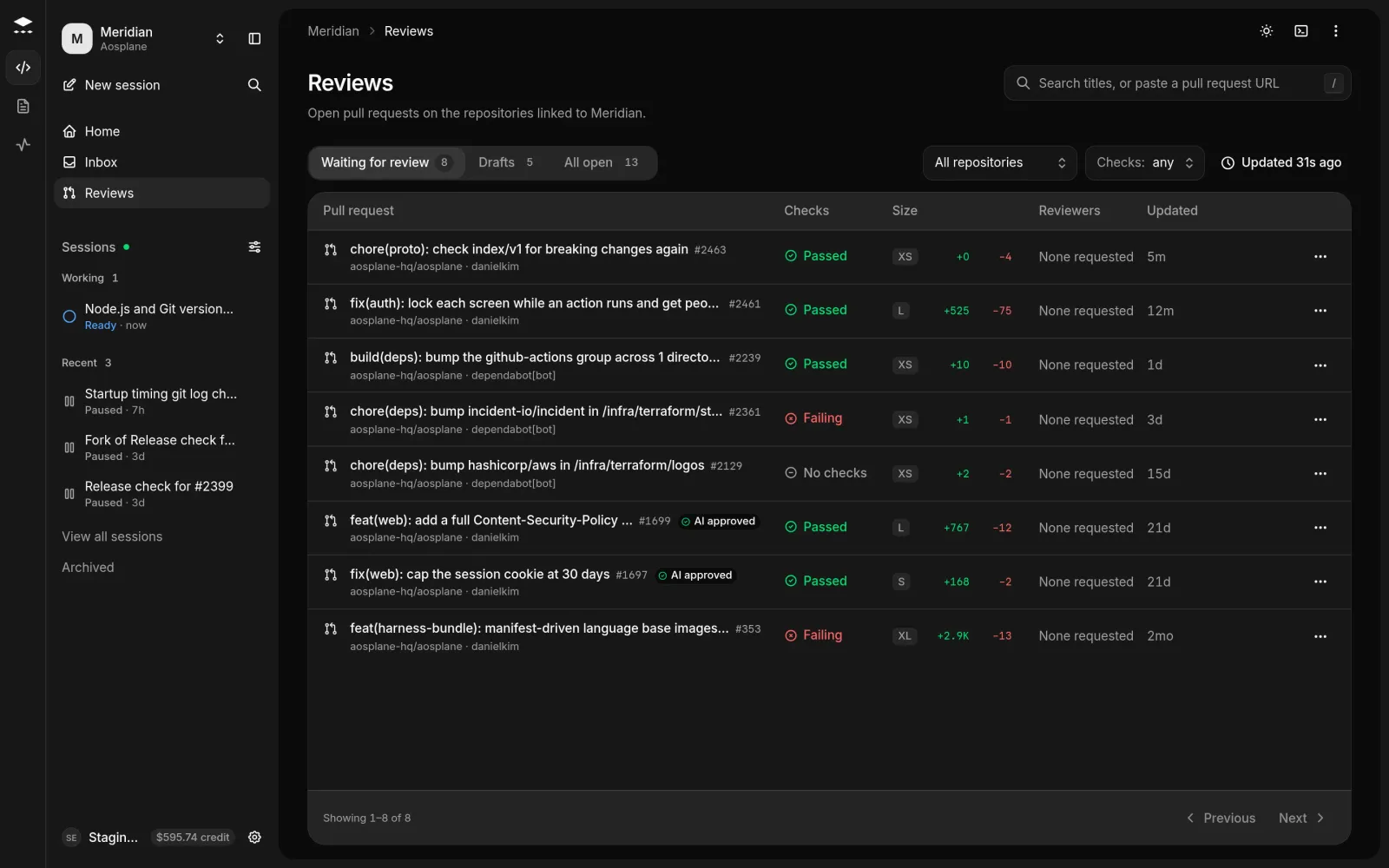
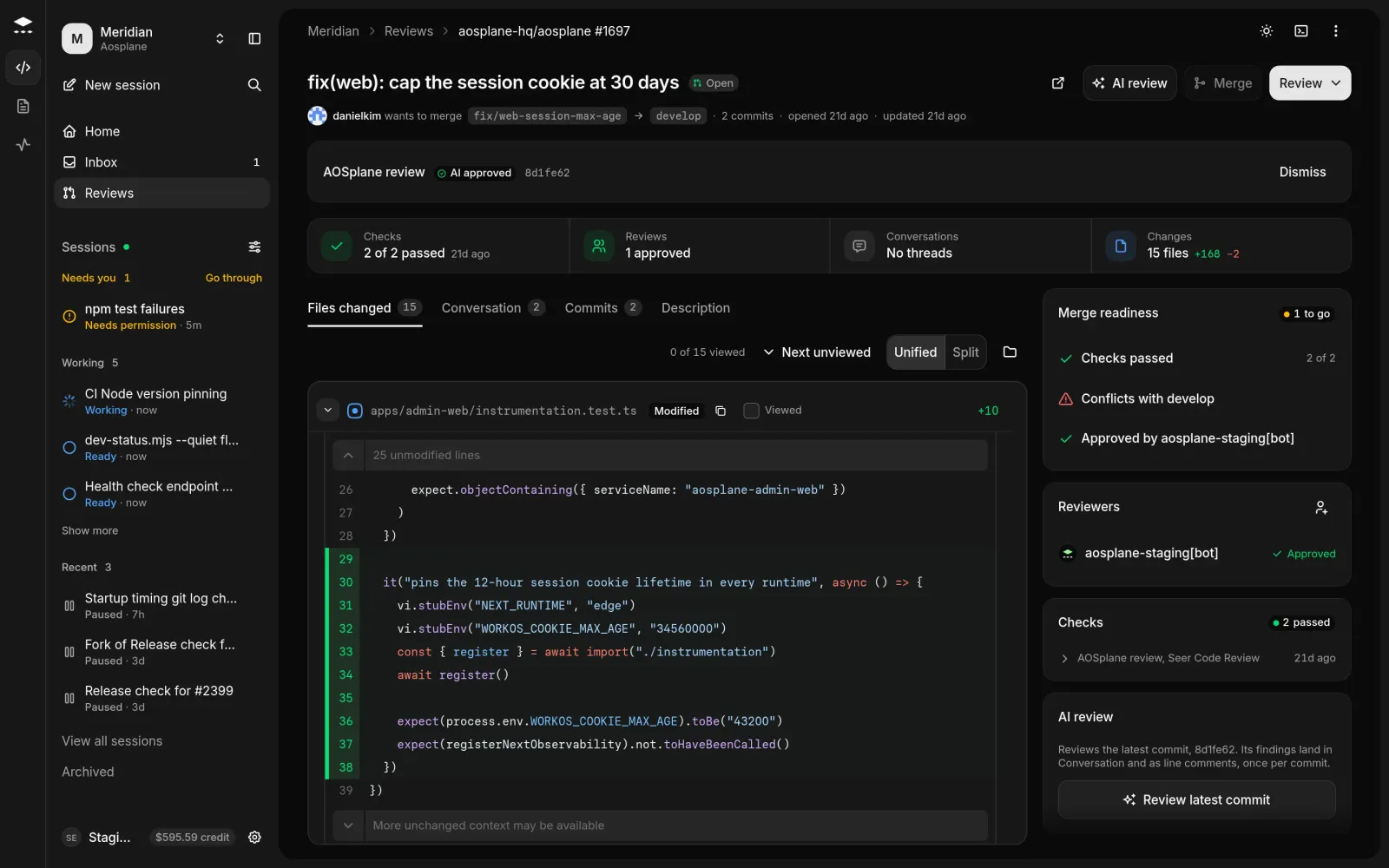
Let an agent fix the findings
- On a line comment, choose Send to agent to pass it to the session that opened the pull request, or Fix in new session to start one. Add a Note for the agent if you like.
- In the AOSplane review panel, choose Fix findings, then Start fixing. The session pushes to the pull request’s branch, never force-pushes, and stops if anyone else pushes. It’s billed like any session.
Turn on automatic reviews
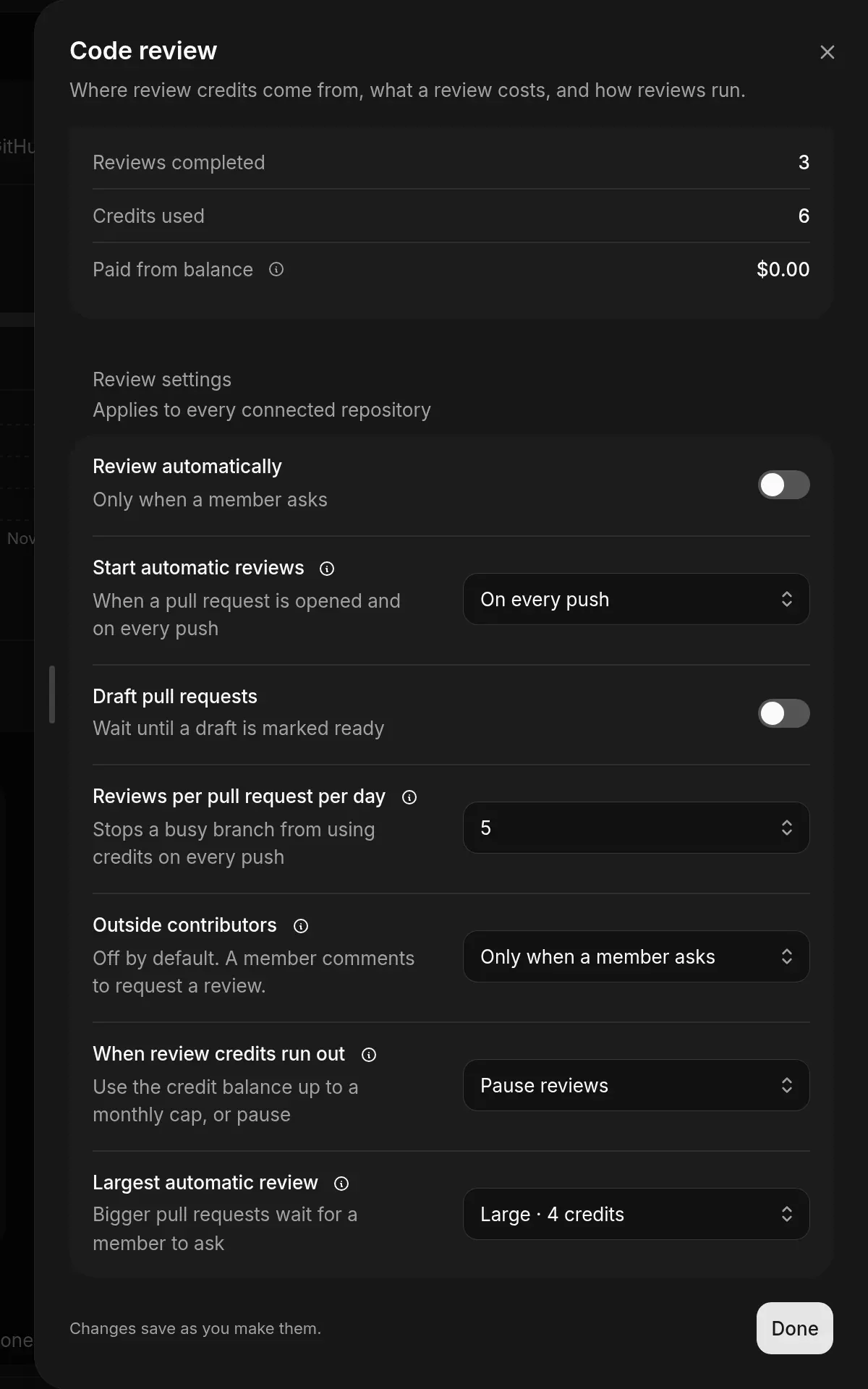
Review settings and their defaults
Start work from GitHub
- Mention
@aosplanein an issue, a pull request comment or a new issue’s description to start a session. AOSplane replies with a link, then a summary. - On an agent’s pull request, a mention goes to that agent’s session.
- Comment exactly
@aosplane reviewon a pull request to ask for an AI review, for example on an outside contributor’s pull request.
You need your GitHub account connected, an Engineer, Admin or Owner role, and write access to the repository. The repository must be linked to a project with an agent. Pull requests from forks are refused.
Good to know
- Your plan includes review credits each month: Free 25, Starter 300, Team 1,000, Enterprise custom.
- A review costs credits by size: Small 1, Medium 2 (200+ changed lines or 10+ files), Large 4 (1,000+ lines or 40+ files). Another review of the same pull request in the same period costs 1.
- Credits come from your plan, then review credit packs (Buy review credits, valid 12 months), then your credit balance.
- Each commit is reviewed once. Push a new commit to get a new review.
- In project Settings › Pull requests, admins choose what happens when CI fails on an agent’s pull request (Tell me or Try to fix automatically) and can turn on Fix review findings on agent pull requests automatically.
- Only linked repositories show up. If one is missing, see Repositories.