
Start a session
Give a coding agent a task and let it work in its own sandbox
A session is one piece of work by an agent. You describe the task, the agent works on it in a sandbox, and you follow along in the session’s chat.
You need the Owner, Admin or Engineer role to start a session.
Start a session
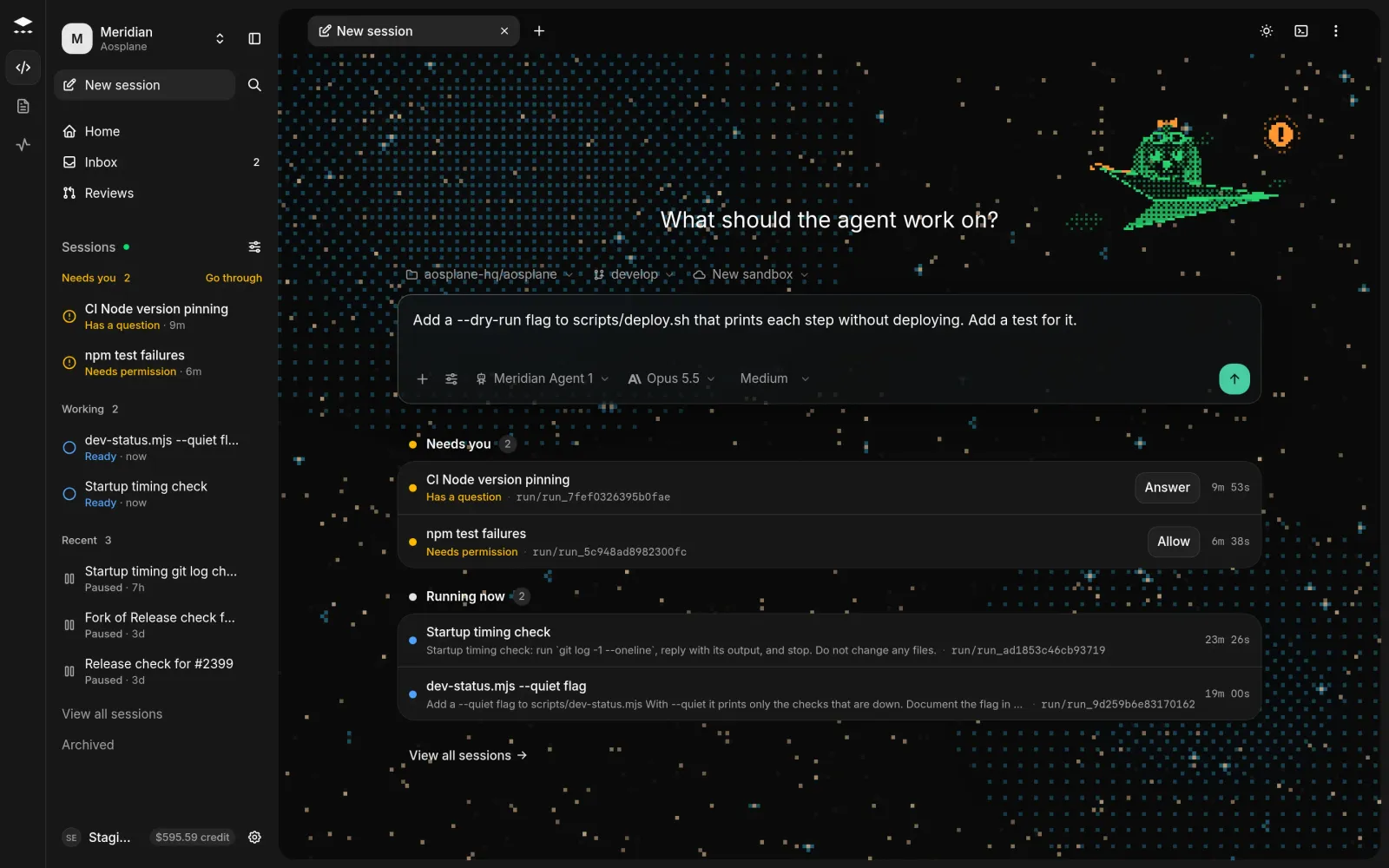
Pick the code
Above the box, pick the repository, then use Start from to pick a branch or pull request. The session works on its own new branch.
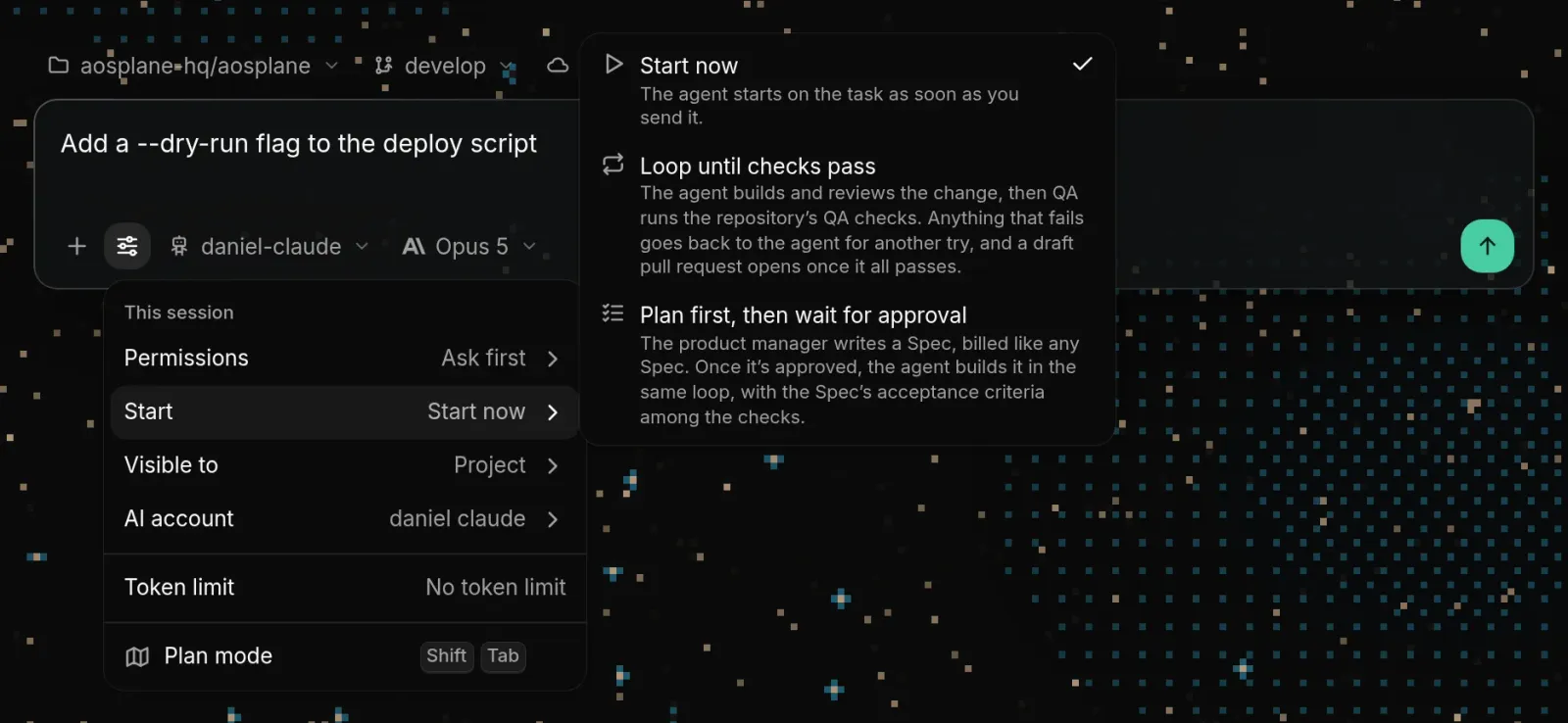
Loop until the checks pass
The agent can keep trying until your repository’s QA checks pass, then open a draft pull request.
Pick the start mode
Under Start, choose Loop until checks pass. Or choose Plan first, then wait for approval to have the product manager write a Spec that someone approves first.
Good to know
- Session settings starts from the agent’s setup and changes this session only: Permissions, Start, Visible to, AI account, limits and Plan mode (⇧Tab).
- Visible to is Project by default: everyone in the project can see and drive it. Selected and Private narrow it to you, organization admins and teammates you pick.
- The sandbox chip picks a New sandbox (default) or one of the project’s sandboxes.
- Attachments: up to 10 per message, 50 MiB in total. Images up to 10 MiB, PDFs 20 MiB, text and code 2 MiB.
- Your plan caps how many sessions run at once in a project. The composer shows the slots left. See Billing.
Working on more than one repository in a session (up to 10) needs the Starter, Team or Enterprise plan. Open the repository chip and choose Add next to each one.