
Review changes and open a pull request
Every session works on its own branch. The Changes tab shows the diff as the agent works, and from there you can comment, open a pull request and follow it to merge.
Review the changes
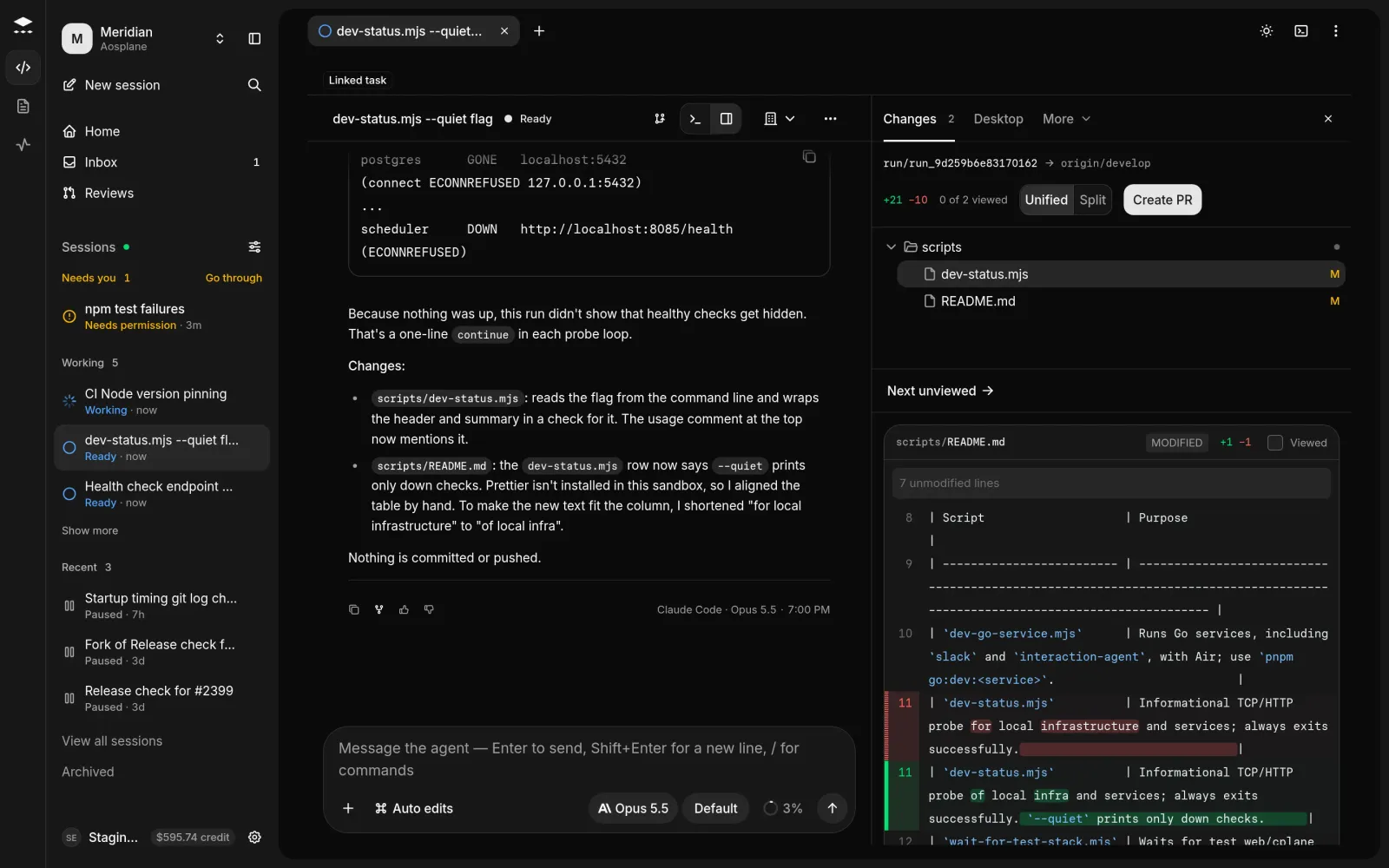
Open the Changes tab
On the session page, open Changes in the side panel (⌘⇧G). It lists every changed file with its diff.
Open a pull request
Ask for the pull request
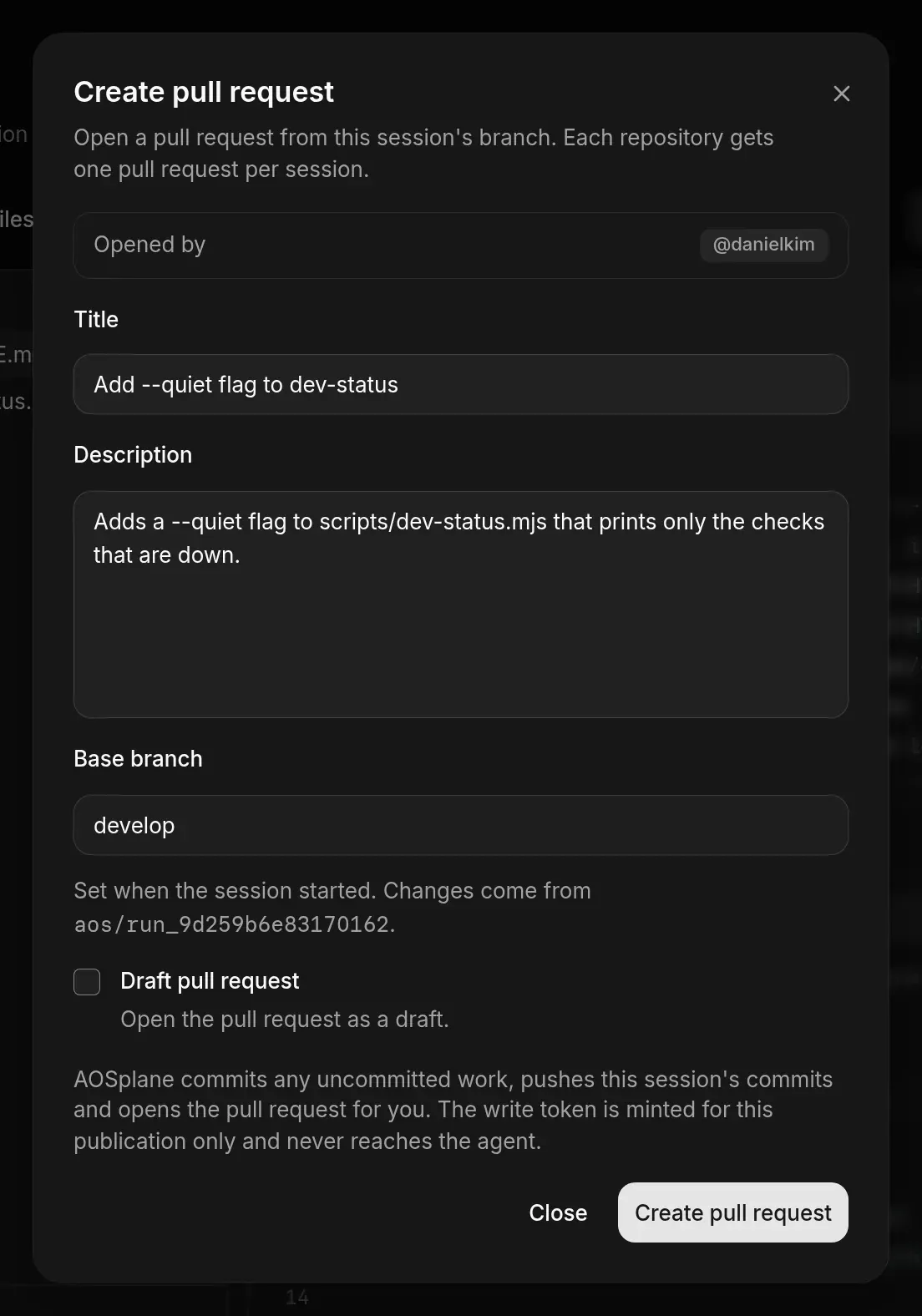
In the Changes tab, choose Create PR. The agent commits its work and opens the pull request, with a title and description it writes.
On the changes page, AOSplane commits any uncommitted work, pushes the session’s commits and opens the pull request for you. Opened by shows whether it opens as you (your GitHub login) or as the AOSplane App.
Get it to merge
Choose the pull request at the top of the session. It says Ready to merge, or lists what stands in the way, such as failed checks, review comments or merge conflicts.
- Ask agent to fix sends failed checks to the agent. Ask agent to rebase handles merge conflicts.
- Send to agent passes open review comments to the agent.
- Review and merge opens the pull request’s review page, where you merge it. See Code review.
Good to know
- Each repository gets one pull request per session.
- To commit or push without a pull request, choose the branch button at the top of the session, then Commit or push. Write a Commit message and choose Commit all & push, or Push only.
- Create PR in the Changes tab works while the session is live. The changes page’s Create PR and Commit or push need your GitHub account connected, and Commit or push needs the Owner, Admin or Engineer role. See GitHub.
- A session started with Loop until checks pass opens a draft pull request by itself once the checks pass. See Start a session.
- Admins choose what happens when CI fails on an agent’s pull request in the project’s Settings › Pull requests.