
Slack
Tag @AOSplane in Slack to start a session and follow it in the thread
Add AOSplane to your Slack workspace, and anyone on your team can tag @AOSplane with a task or a screenshot to start a session. The session runs as them, and its progress, answers and pull request land in the same thread.
Connect Slack
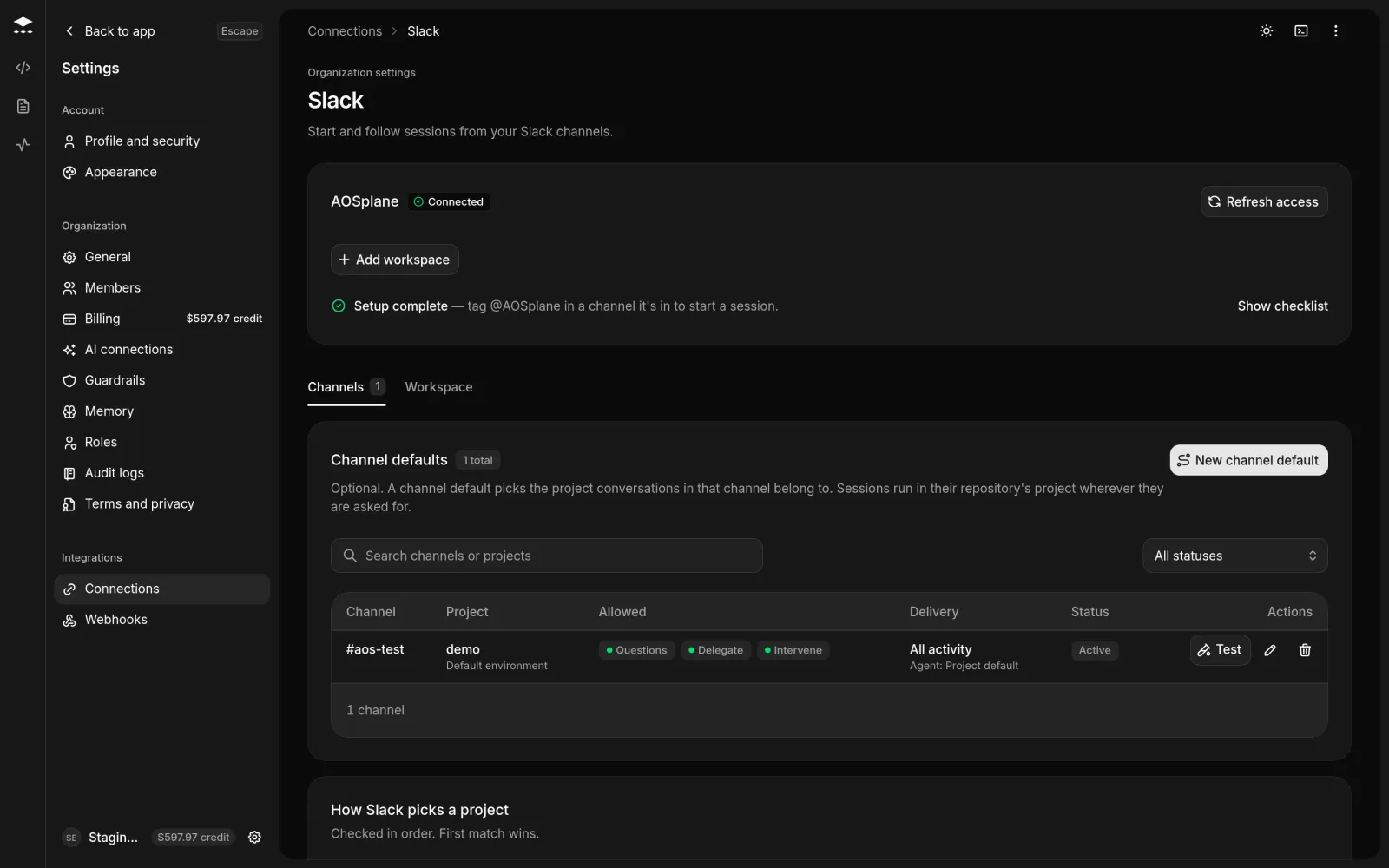
Nobody links an account by hand. AOSplane recognizes each person by the verified email on their Slack account, and they keep their own role and project access.
Start a session from Slack
Ask
Tag @AOSplane in a channel with what you need, and paste screenshots if they help. You can also message AOSplane directly, or use the Start AOSplane session shortcut on any message.Pick the repository
AOSplane posts a card in the thread. Pick a repository from Choose a repository, then choose Start in followed by its name. The card skips this when your message names one repository, your organization has only one, or the thread’s last session used one.When you share images with a tag, the card asks what to do: New session, Add to a session (one already running in that channel) or New channel, which moves the request into a new private channel with the people from the thread.
Set a channel default (optional)
A session runs in the project its repository belongs to. Other conversations, like questions, use the channel’s default project, or your organization’s oldest project if there’s none.
Choose a channel and project
Pick the channel (AOSplane must be a member) and the project. Optionally pick an agent and environment.Good to know
- A session starts only in a repository the person who asked can write to on GitHub, and it runs as them.
- Each request is its own session, with its own sandbox, branch and pull request.
@AOSplane remember …saves a note every session in the project uses. See Memory.- AOSplane only reads and posts in channels it’s invited to.
- If the page asks you to Update permissions, approve them in Slack so AOSplane can recognize people, read screenshots and open private channels.
- To disconnect, open the Workspace tab and choose Disconnect under Danger zone. Channel defaults are kept, so reconnecting restores them.