
Connect an AI account
Every session runs a coding agent, such as Claude Code or Codex, on an AI account: your subscription or key with an AI provider, which bills you for the model. You connect accounts in Settings › AI connections.
Owners, Admins and Engineers can connect accounts for themselves. Only the Owner can connect Team accounts, which run everyone’s sessions in the projects they’re added to. Admins can see team accounts and change the team’s order.
Your own accounts (tagged Only you) run only your sessions and are tried first. Then sessions use the team’s order for that agent, moving to the next account when one runs out.
Set up a coding agent
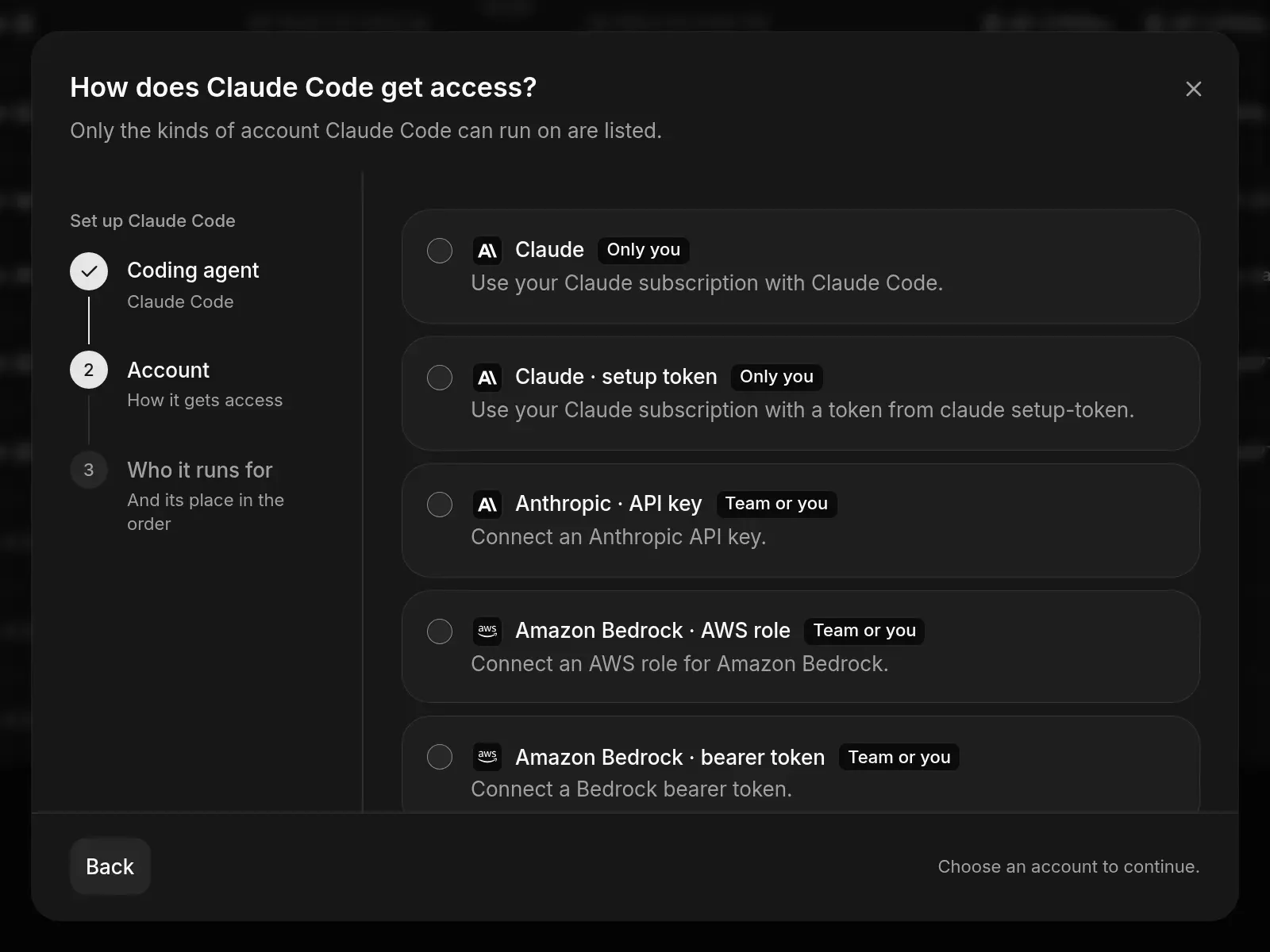
Which account types each agent runs on
Connect your Claude subscription
Use a Claude plan you already pay for. A subscription only ever runs your own sessions.
Sign in with Claude
Paste a setup token
- In Set up an agent, choose Claude Code, then Claude, then Continue with Claude.
- Approve access in the Claude tab that opens. (No tab? Choose Continue with Claude in the dialog.)
- Paste the whole code Claude shows, including the part after
#, into Authorization code and choose Send code.
When the dialog says Account connected, you’re done. A sign-in is valid for 15 minutes.
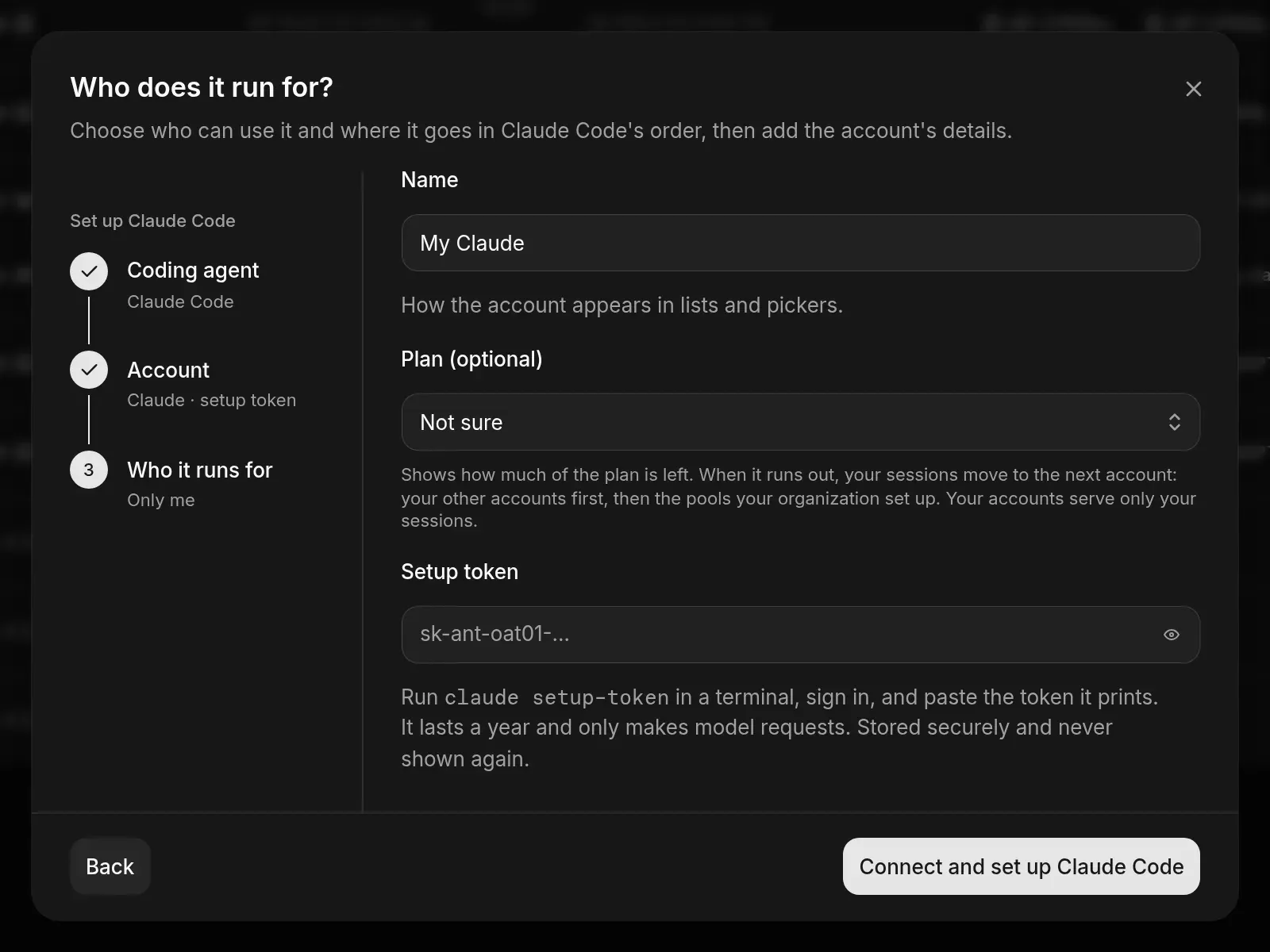
For a ChatGPT subscription, pick ChatGPT, choose Continue with OpenAI, and enter the Verification code shown on the OpenAI page.
Fix an account
The AI accounts tab lists every account, whose sessions it serves, the agents that use it and its status.
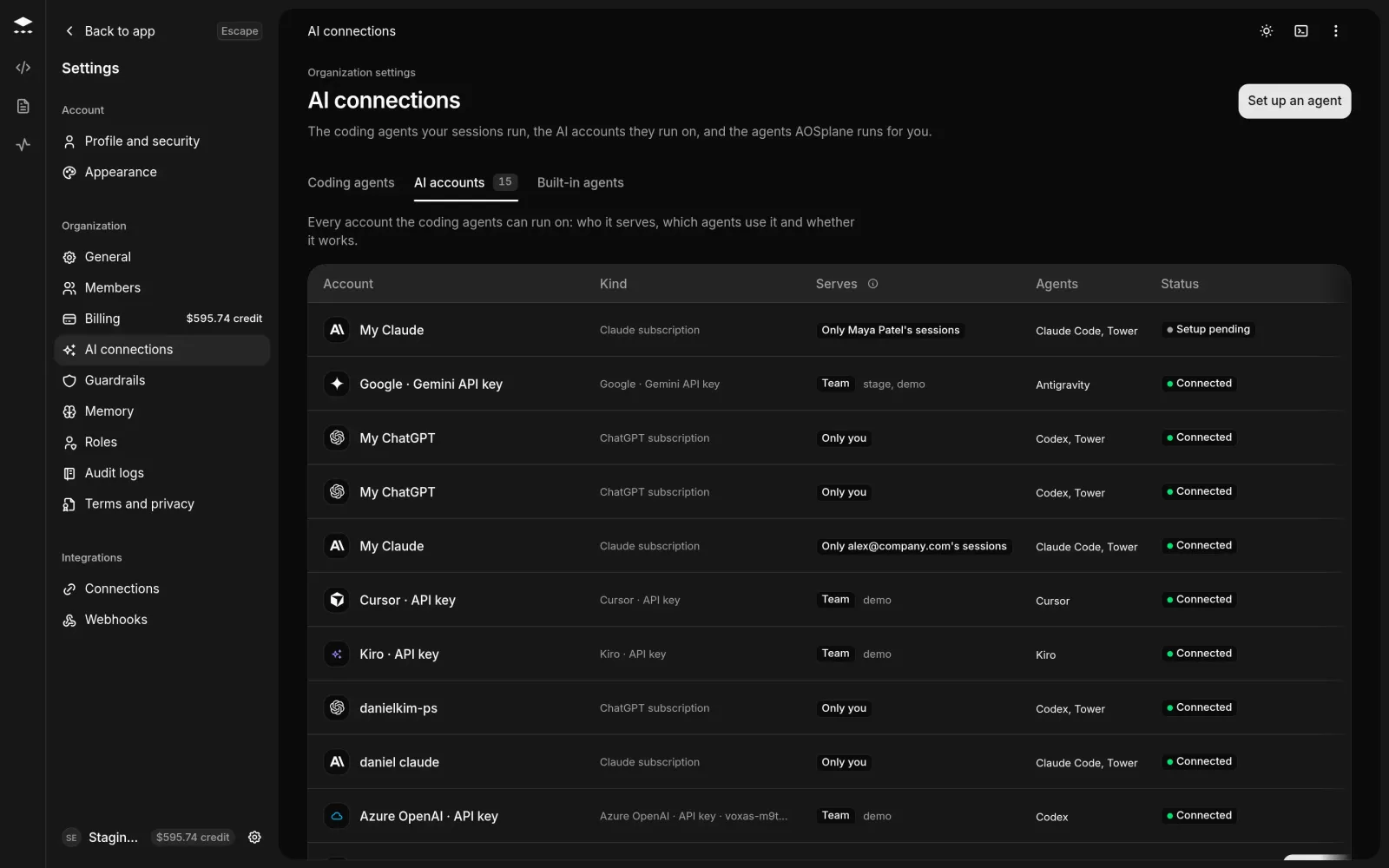
An account that shows Setup pending, Sign-in needed or Needs attention can’t start sessions: choose Sign in again or Replace key on its row. Expires soon means the known expiry you entered is less than 30 days away. A Disconnected account comes back with Reconnect in its ⋯ menu.
Good to know
- Disconnect signs an account out but keeps its place in orders and projects. Delete can’t be undone.
- Keys are stored securely and never shown again.
- Every project adds a team account to today’s projects. Add it to new ones from their settings.
- On the Coding agents tab, Admins choose Edit order to change the team’s order.