
Skip to navigation

Members and roles

Invite people to your organization and choose what each of them can do
View as Markdown

Everyone in your organization has one role, and it applies in every project. There are no per-project member lists: once someone joins, they can open every project, and their role decides what they can do there.

Owners and Admins open Settings › Members. Admins can give any role except Owner. Only an owner can make another owner.

Invite people
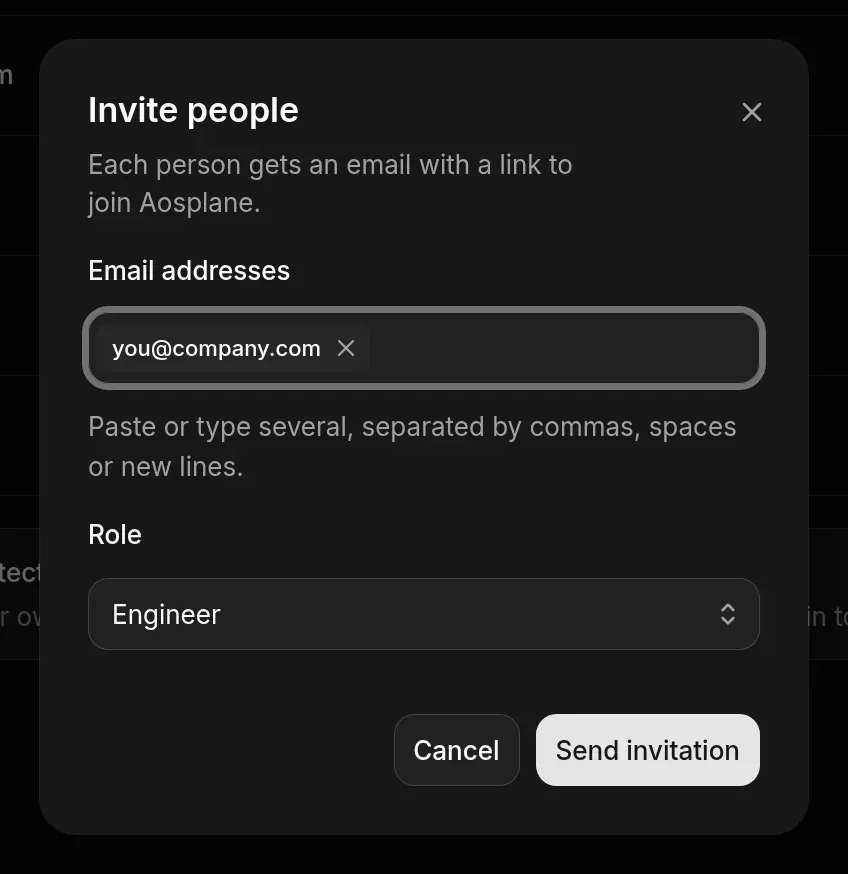
1

Open Members

Choose Settings, then Members under Organization.

2

Open the invite form

Choose Invite people.

3

Add their email addresses

Paste or type up to 50 addresses, separated by commas, spaces or new lines.

4

Pick a role

Choose a Role. Engineer is the default.

5

Send

Choose Send invitation (or Invite 3 people, for several). Each person gets an email with a link to join.

Invite people dialog with the Email addresses field and the Role menu set to Engineer
Inviting people

The dialog says what happened to each address, for example that someone is already a member or already has a pending invitation.

The roles

RoleIn shortWhat they can do
OwnerFull controlEverything an admin can, plus the plan and payment, organization settings such as Guardrails and Roles, and organization AI accounts.
AdminManages peopleInvite people and change roles, manage projects, agents, integrations and spend limits, and see billing.
EngineerRuns agentsStart and answer sessions in every project and connect their own AI accounts. Sees spend limits, not billing.
BillingBilling and spendSee invoices and usage and set spend limits. Read-only on sessions. Can’t open audit logs.
ViewerRead onlyLook at projects, sessions and their permission requests, without answering them or changing anything.

Your own role and what it allows are on Settings › General.

Change someone’s role

On the Members page, open the ⋯ menu on the person’s row, choose Edit role, pick the role and save. You can’t change your own role or remove yourself. Ask another owner or admin.
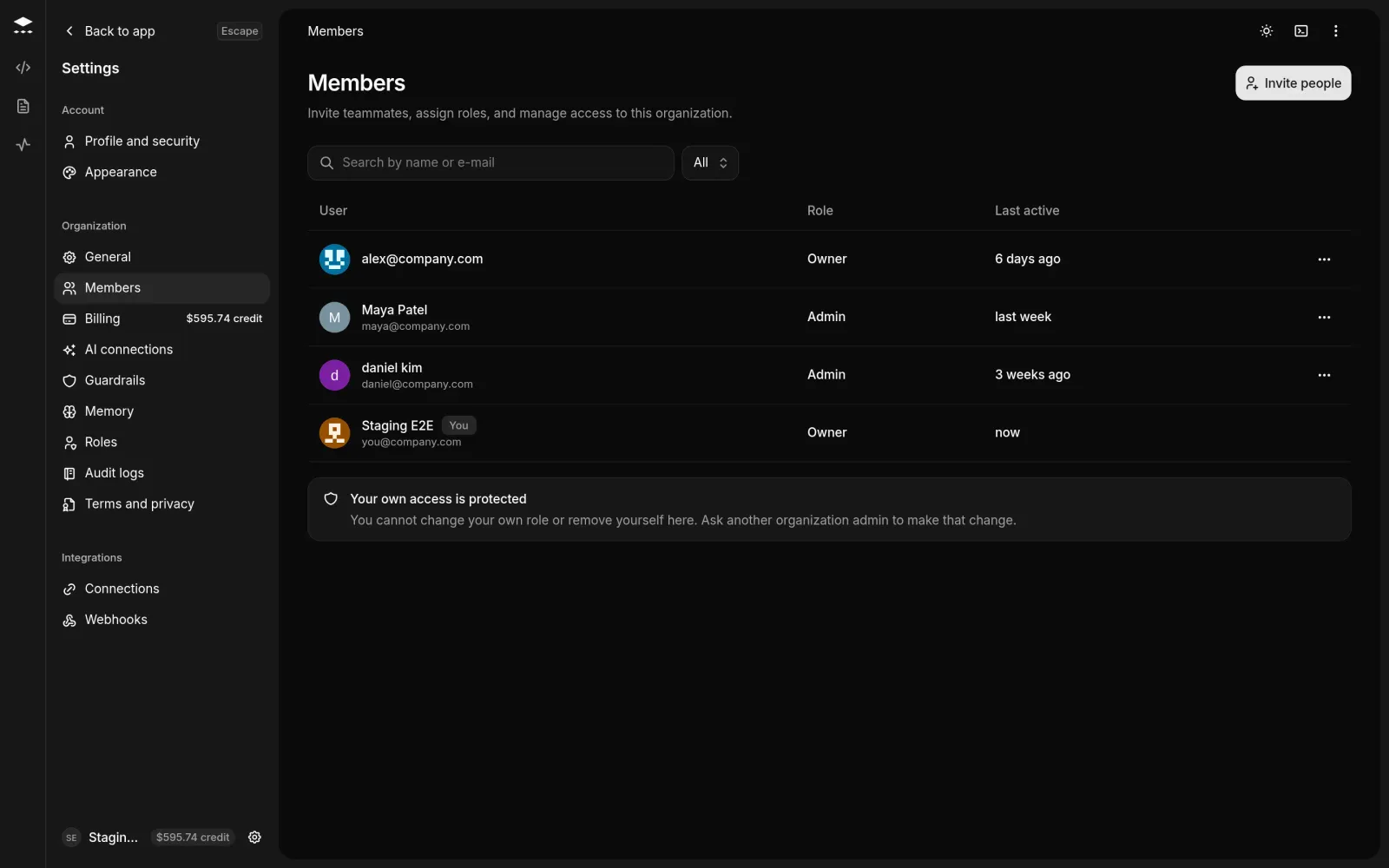
Members page listing people with their role and Last active, the Invite people button, and the note Your own access is protected
The Members page

Remove someone

Open the ⋯ menu on their row, choose Remove user and confirm. They can’t open your organization any more, and their name stays in older records such as the audit log.

Good to know

  • Find someone with Search by name or e-mail. Last active shows when they last used AOSplane.
  • Pending invitations are in the list too, where you can resend or revoke them.
  • A project’s Settings tab shows your role under Access, with Open Members for owners and admins.