
Skip to navigation

Activity

See step by step what agents and people did in a project's sandboxes
View as Markdown

Activity is a step-by-step record of every session: the requests, each model call, every command and file edit, the approvals, and the terminal sessions people opened. AOSplane records it from outside the sandbox and removes secrets before anything is kept. Use it to find out why a session failed, what it cost, or who did what.

Activity is the Agent activity add-on, sold on the Starter, Team and Enterprise plans. Until it’s on, the tab shows a preview. The account owner turns it on with Enable agent activity, or under Billing › Add-ons. It records sessions started after that. Everyone in the project can see activity for the sessions they can see.

See what happened in a project

1

Open the tab

Open the project and choose the Activity tab.

2

Pick a period and agent

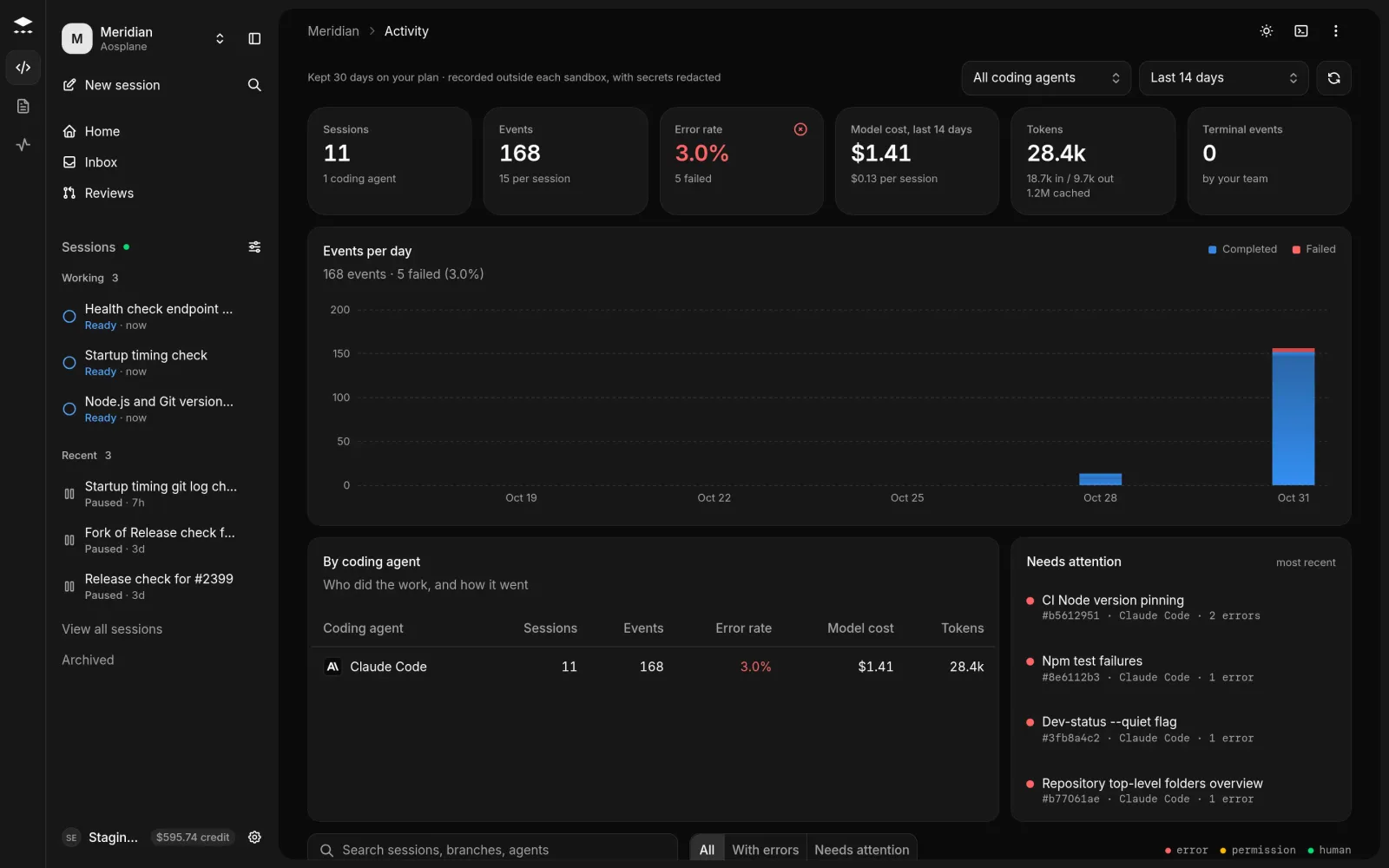
Use the menus at the top: All coding agents or one agent, and a period from Last 24 hours to Last 365 days (the default is Last 14 days). Only periods your plan keeps are offered.
3

Read the totals

Sessions, Events, Error rate, Model cost, Tokens and Terminal events, then Events per day, By coding agent and Needs attention.

4

Find a session

The list shows 25 sessions a page. Choose All, With errors or Needs attention, or search by title, branch or agent. Select a session to open its activity.

Activity tab with the period and coding agent menus, totals for sessions, events, error rate, model cost, tokens and terminal events, the Events per day chart and the sessions list
A project's Activity tab

Follow one session

You can also open a session’s activity from the session page: choose ⋯, then Open activity. Open session takes you back to the chat.
1

Zoom the timeline

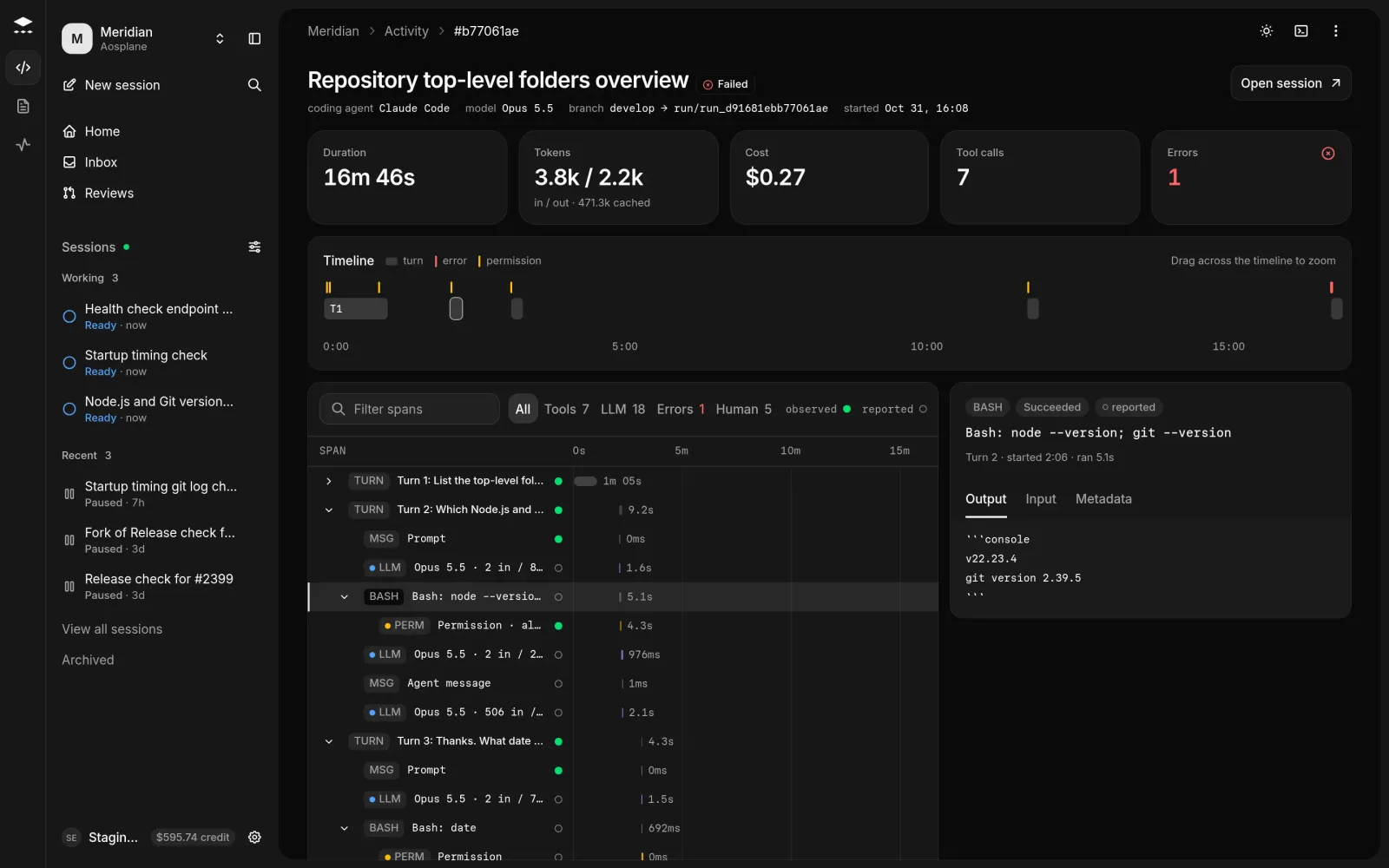
The Timeline shows the session’s turns in order (labelled T1, T2 and so on where there’s room), with marks for errors, approvals and terminal sessions. Select a turn or drag across it to zoom. Show whole session zooms out.

2

Filter the steps

Type in Filter spans, or choose Tools, LLM, Errors or Human (you can pick several).

3

Open a step

Select a step to see its Output, Input and Metadata. Open full output shows long output in full, if it was kept. Copy the page address to share the selected step.

Session activity with the duration, tokens, cost and errors, a timeline of turns, the list of steps with their timing bars, and the details of the selected step
One session's activity
LabelStep
TURN, MSGOne request and the agent’s work on it, or a message in it.
LLMA model call, with its tokens.
READ, EDIT, BASHThe agent read or changed a file, or ran a command.
MCPThe agent used a tool from one of the project’s apps.
PERMAn approval: waiting, allowed or declined.
NETA network request that was allowed or blocked.
HUMANA terminal session a person opened.
SUB, PLANA helper agent, or a plan the agent proposed.

A filled dot (observed) means AOSplane saw the step itself. A hollow dot (reported) means it comes from the agent’s own account.

Replay a terminal session

When someone uses a session’s terminal, AOSplane records what they typed and what the screen showed. Select a HUMAN step or one of its commands and choose Replay terminal session. Use play, the speed button and Next command to move through it, and Show in trace to jump back to the step. Anything typed at a password or token prompt shows as Command not recorded.

Choose what gets recorded

Open the project’s Settings and choose Agent activity. Turn Prompts, Agent messages, Tool inputs, Tool outputs and Human terminal sessions on or off, then choose Save. All five are on unless your organization changed them.

Good to know

  • Timings, exit codes, token counts and IDs are always recorded. Secrets are always removed.
  • Owners and Admins change a project’s recording settings. The account owner sets the organization default and the retention under Billing › Add-ons › Agent activity › Settings.
  • Retention can be 7 days, 30 days, 90 days or 365 days, up to your plan’s ceiling: 7 days on Starter, 30 on Team, up to 365 on Enterprise.
  • The add-on costs 1.50permillionrecordedevents,plus1.50 per million recorded events, plus 0.10 per GiB per month for activity kept longer than 30 days.
  • Changes to recording settings apply to sessions started afterwards.