
Sandboxes
A sandbox is an isolated cloud machine where a session’s coding agent works, with its own files, software, processor, memory and disk. Every session gets a sandbox on its own, so you only open the Sandboxes tab to pick a size, keep a workspace running for longer work, or share one sandbox between several sessions.
Find a project’s sandboxes
Open the project and choose the Sandboxes tab. The top counts what’s Running and Starting, the Total, and your Snapshots.
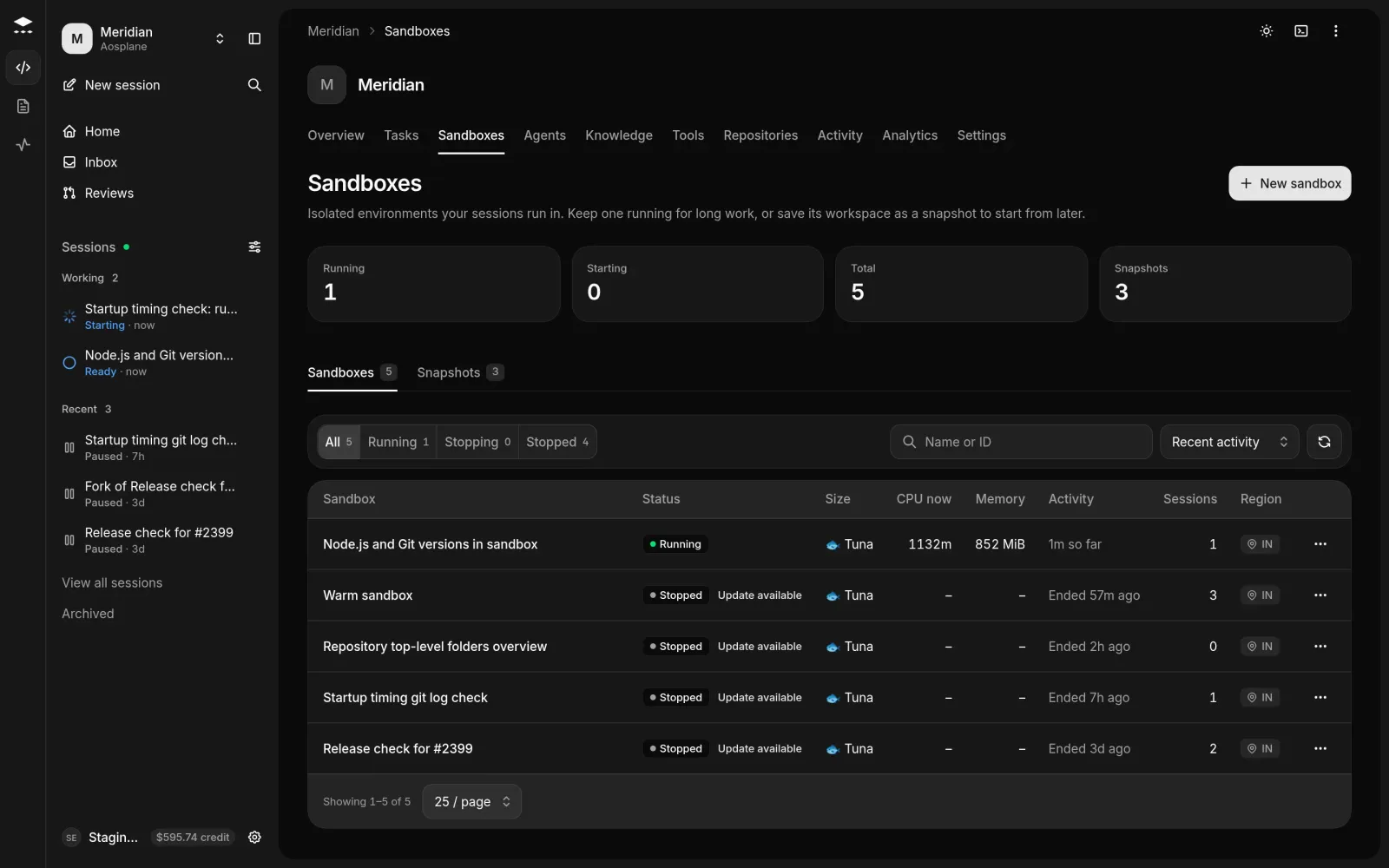
- Filter with All, Running, Stopping or Stopped (failed sandboxes are under Stopped), search by name or ID, and sort by Recent activity, Newest created or Name A–Z.
- Each row shows the Status, Size, CPU now, Memory, Activity, Sessions and Region. Its ⋯ menu has Stop, Resume or Start again.
- Select a row to open the sandbox’s page.
Create a sandbox
Name it and pick a source
Enter a Name. Under Workspace source, keep Default image or pick a snapshot to start with its repositories and dependencies already on disk.
Choose its size
Pick a Size and Storage. Every session in the sandbox shares this capacity, and you can’t change it later.
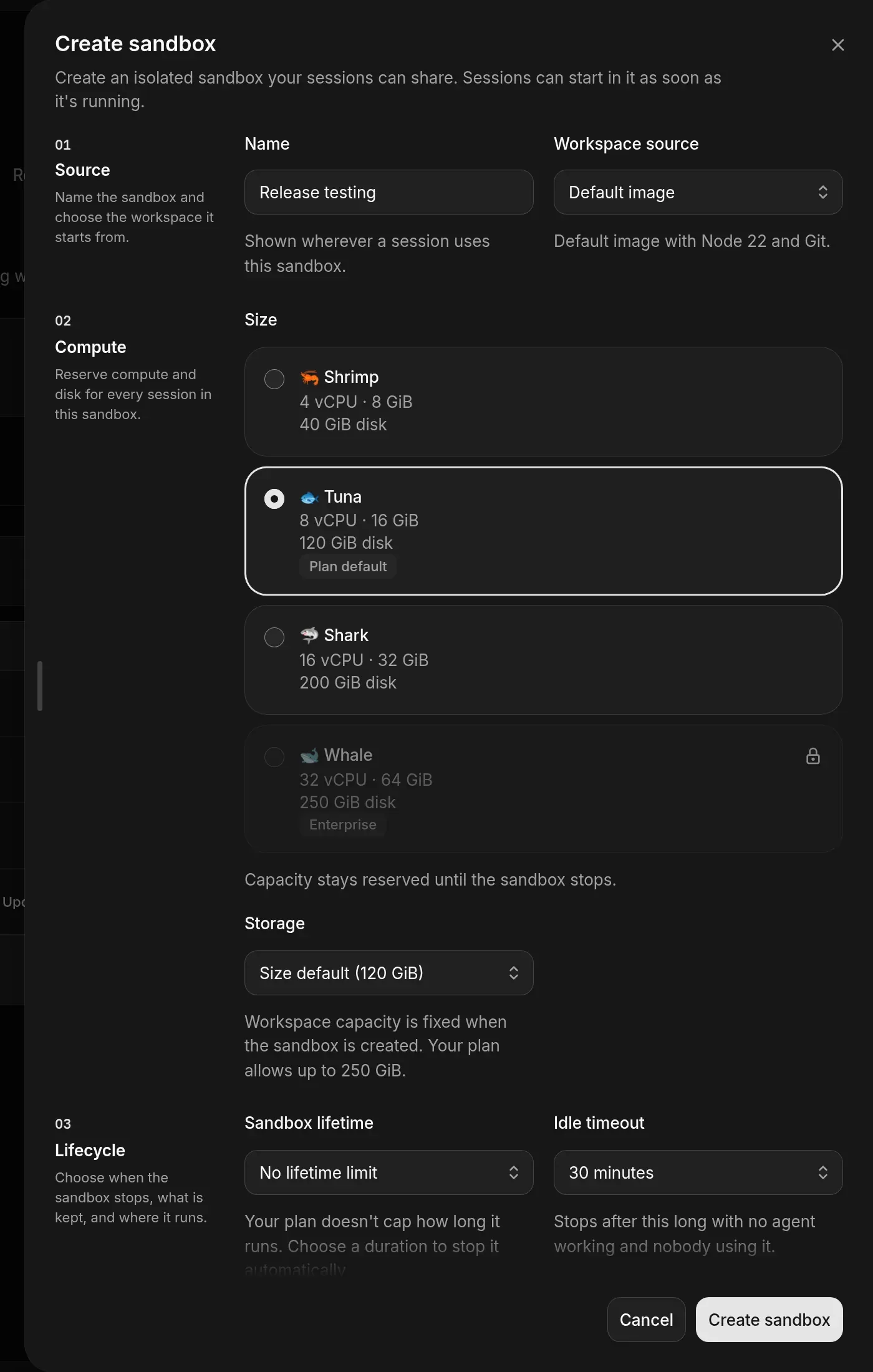
Your plan also caps the disk of one sandbox (40 GiB on Free, 120 GiB on Starter, 250 GiB on Team, 500 GiB on Enterprise) and how many sandboxes can be active in a project at once (2, 8, 32, or custom on Enterprise). Stopped sandboxes don’t count. See Billing and plans.
Automatic shutdown
- Idle timeout: stop after 15 minutes, 30 minutes (the default), 1 hour or 2 hours without activity, or never (No idle shutdown). Sandboxes that sessions create stop after 30 minutes without activity, and wake up again when you send the session a message.
- Sandbox lifetime: stop after 1 hour, 2 hours, 4 hours or 8 hours in total. On Free, a sandbox runs for 1 hour at most.
- Snapshot workspace when it stops: on by default. The files are saved so you can resume. Off, stopping deletes the workspace.
Work with a sandbox
The sandbox’s page shows its status, Sessions, Uptime, Size and Storage, with the Overview, Sessions, Usage (CPU, memory and disk charts) and Snapshots tabs.
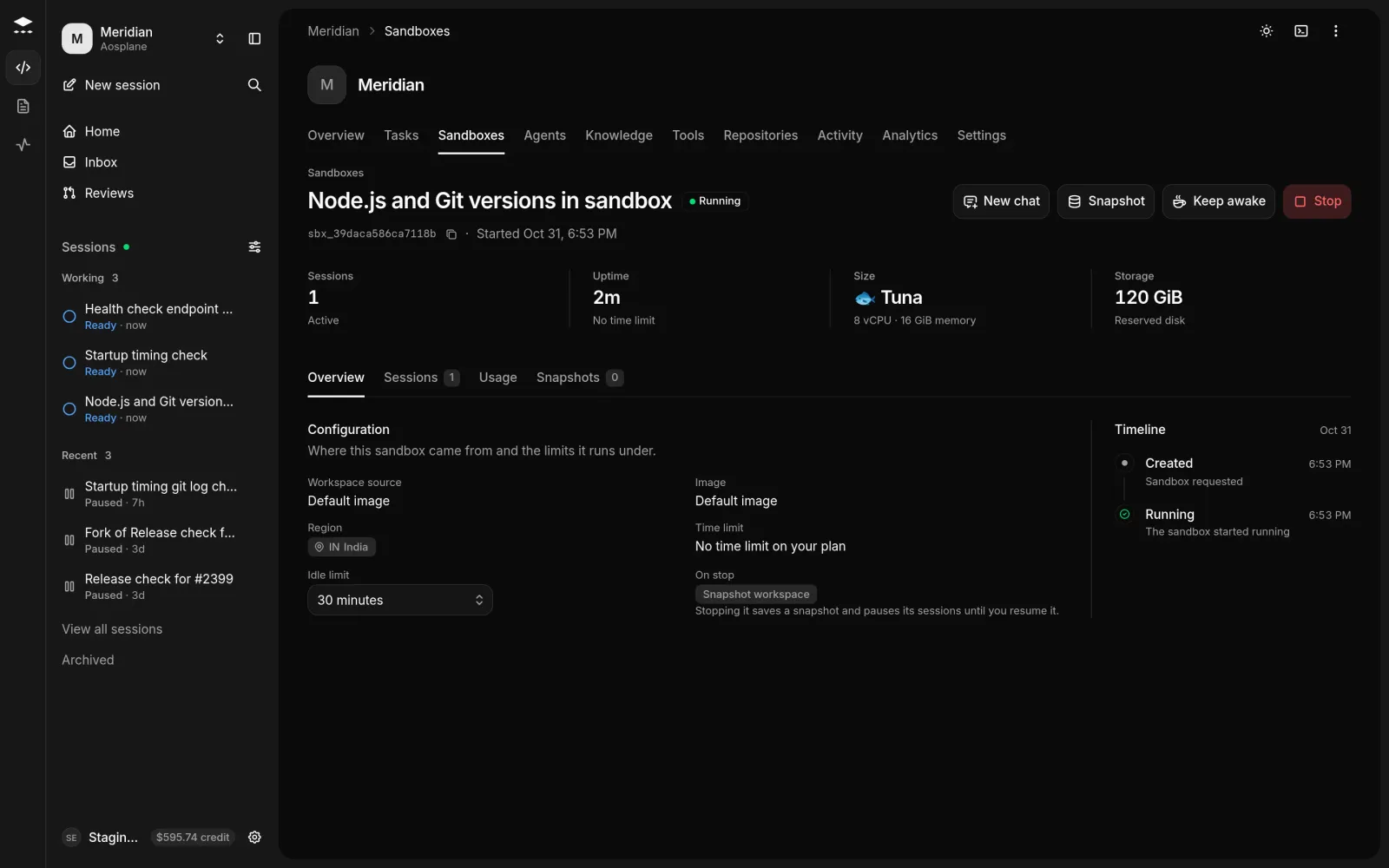
- New chat starts another session in this sandbox, in a new browser tab.
- Snapshot saves the workspace while the sandbox keeps running. Give it a Snapshot name and choose Snapshot sandbox.
- Keep awake stops the idle timeout for 1 hour, 8 hours or 24 hours. You’re billed while it’s awake.
- Idle limit, under Configuration on the Overview tab, changes the idle timeout of a running sandbox.
- Update appears when a newer sandbox version is out. It restarts the sandbox with your files in about a minute.
Stop a sandbox
Choose Stop, type the sandbox ID shown, and choose Stop sandbox. Leave Take a snapshot before stopping checked to keep the files: the sessions in it pause and carry on when you choose Resume. Without a snapshot, the workspace is deleted, the sessions end, and changes that weren’t pushed are lost. Conversations are kept either way.
Stopping a sandbox affects every session in it. Stopping one session leaves its sandbox running. A failed sandbox shows Start again instead of Resume.
Snapshots
The Snapshots tab on the Sandboxes page lists every snapshot with its source sandbox, size and status (Creating, Ready, Failed or Deleting). Its ⋯ menu has New sandbox from snapshot and Delete… (type the snapshot’s name to confirm). A stopped sandbox can’t resume once the snapshot it would resume from is deleted.
Look inside a session’s sandbox
On a session’s page, two buttons at the top right open the sandbox.
Terminal
Terminal (Ctrl+`) opens a command line in the sandbox under the chat, running as you. New terminal adds tabs (up to 8) and Full page opens it on its own page. People’s terminal sessions are recorded in Activity.
Workbench
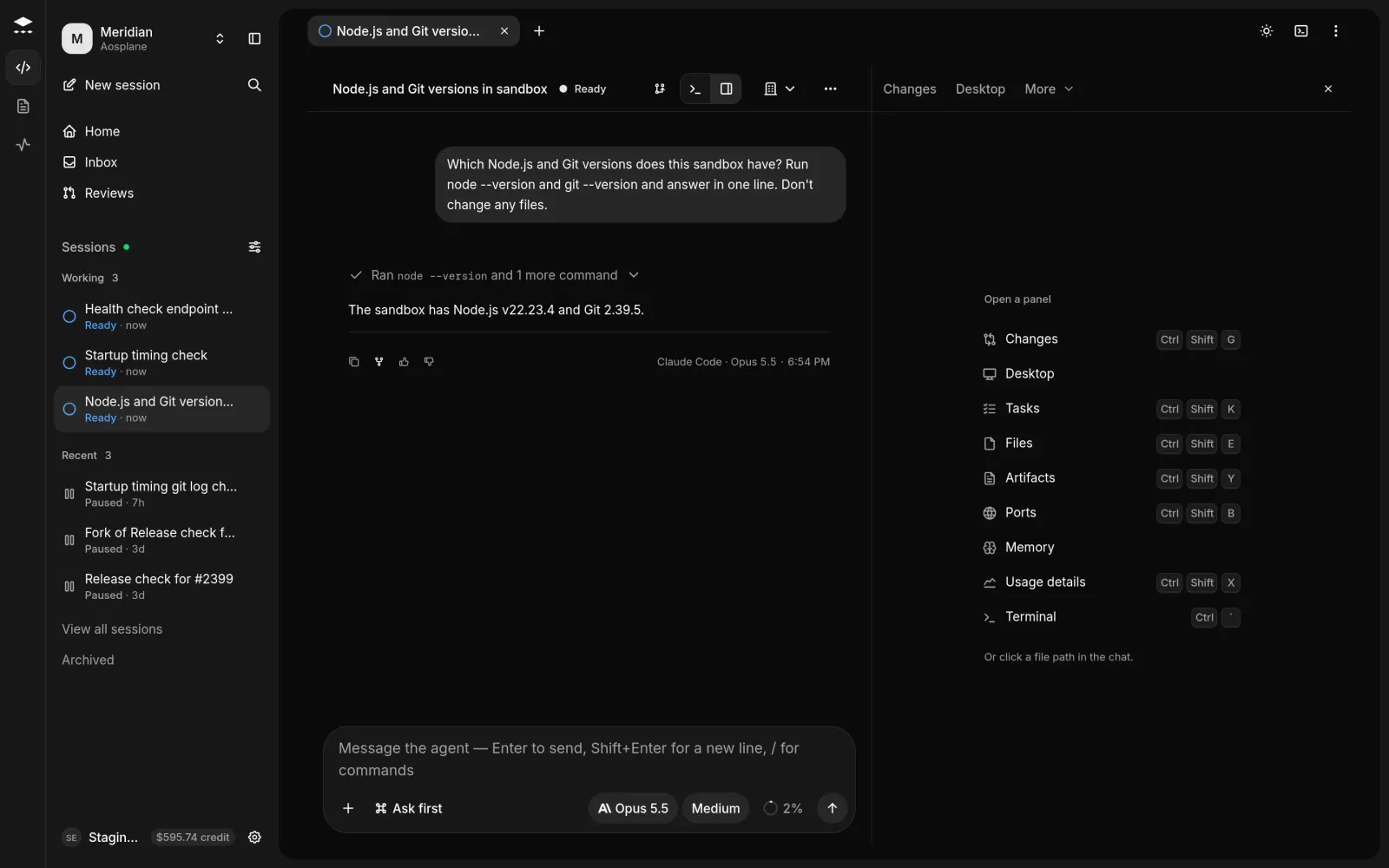
Workbench (Cmd+Option+B on macOS, Ctrl+Alt+B elsewhere) opens a side panel with the session’s views.
Good to know
- Sessions in one sandbox share its files and capacity, and pause or end together when it stops.
- If AOSplane set a custom spec for your organization, the form shows Custom spec instead of sizes. Contact support to change it.
- Viewers and Billing can’t open the terminal or the desktop, or expose ports.