
Your account
Change your profile and sign-in, choose how AOSplane looks, and see what your organization agreed to
Your account settings apply to you only, not to your organization. Open them from the account row at the bottom of the sidebar: select your name, then Account settings. The same menu has Settings, Docs, Replay console tour, Report a problem, Sign out, and Billing with your credit balance if your role can see billing.
Update your profile and sign-in
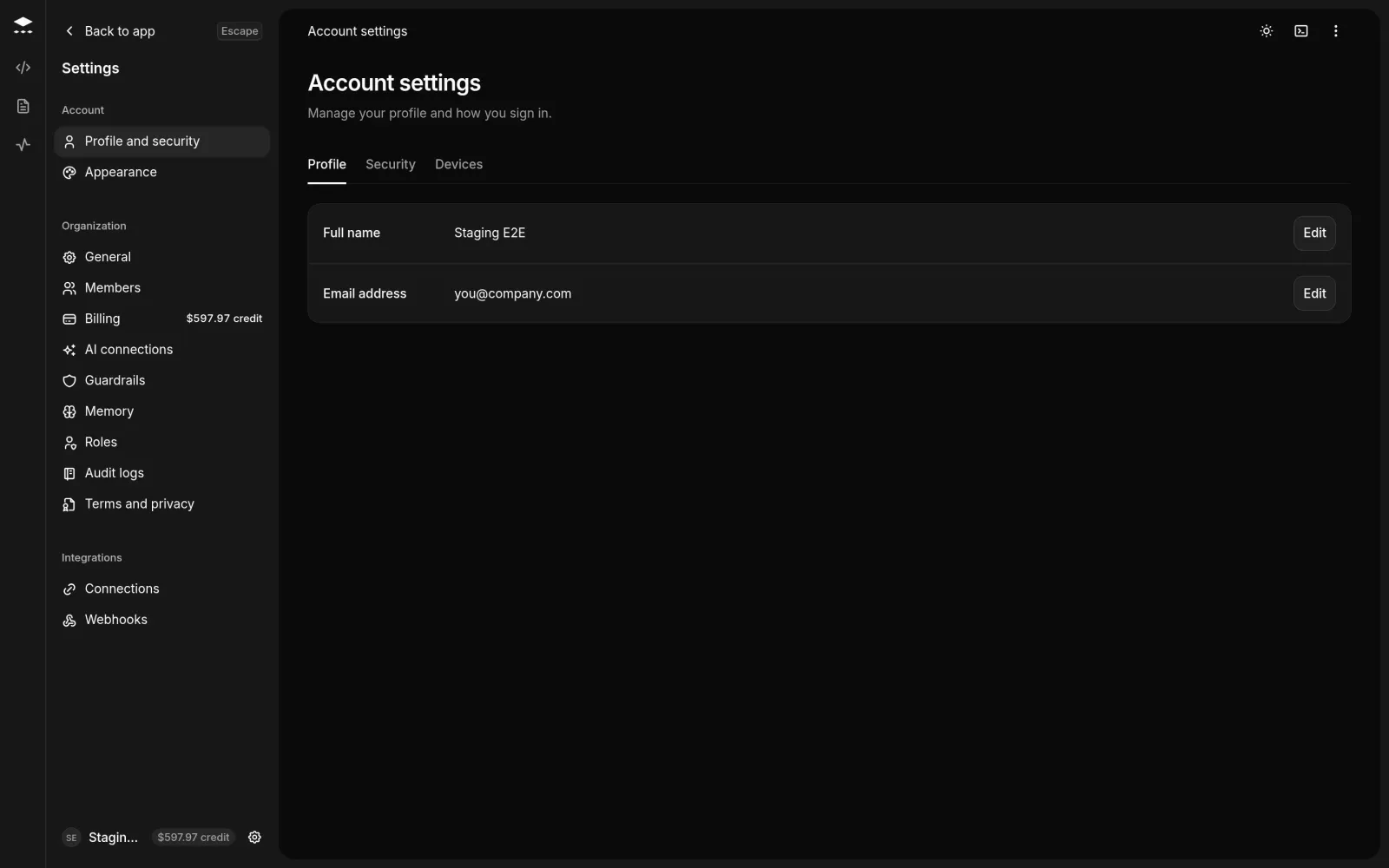
Below the tabs:
- My memories: notes the agent keeps in mind for your messages, such as “I prefer small pull requests”. Turn on Use my personal memories in shared sessions to use them in sessions you share too. See Memory.
- Email notifications: one switch per kind of email. Each change saves at once, and every email also has a link to turn its kind off.
- Delete account: choose Delete account…, type
DELETEand choose Delete account. This signs you out everywhere and deletes your sign-in, profile, API keys and personal connections. Organizations you’re the only member of close with it.
Choose how AOSplane looks
Choose Settings, then Appearance. Changes show in the previews until you choose Save, and apply to this browser only.
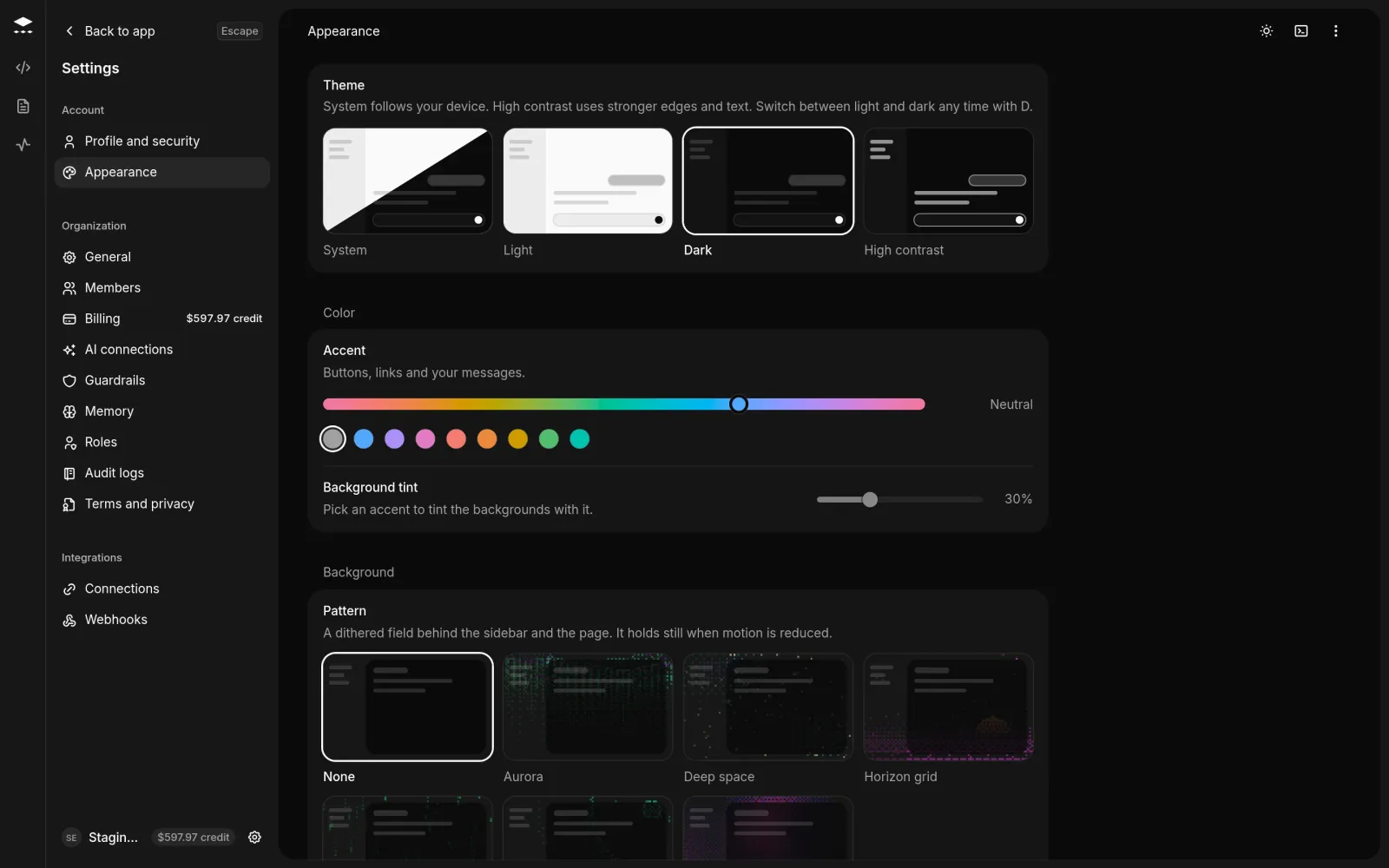
Reset puts every option back to its default. Nothing changes until you save.
Terms and privacy
Settings › Terms and privacy shows the Terms of Service and Privacy Policy your organization accepted, with their versions and dates. The owner or an admin accepts them once for the whole organization: check I have read and agree and choose Accept for my organization. Sessions and purchases start once your organization has accepted. When a new version comes out, nothing is held up while you review it.
Good to know
- Devices, which lists where you’re signed in with Sign out for each, is shown to owners and admins.
- On the Free plan, sessions and sandboxes start once an owner of the organization has verified their email. Verify your email appears here until then.
- You can’t delete your account while you’re the only owner of an organization with other members, or while an organization you’d close is on a paid plan. The dialog says what to do first.
- Your role and organization are on Settings › General. See Organization and project settings.