
Connect GitHub
Let sessions clone, push to and open pull requests in your repositories
AOSplane needs two GitHub connections before a session can work on a repository: the Organization GitHub App, which an admin installs once, and Your GitHub account, which each person connects. Both live on the GitHub page.
Owners and Admins install, change and disconnect the GitHub App. Everyone except the Billing role can open the page and connect their own account.
Connect GitHub
Open the GitHub page
Open Settings (the gear beside your name), choose Connections, then Connect (or Configure) next to GitHub under Source control.Connect your account
On the Your GitHub account card, choose Connect and approve AOSplane on GitHub. You come back to Your GitHub account is connected.Install the App
On the Organization GitHub App card, choose Connect. On GitHub, pick the account or organization and choose All repositories or only the ones you select.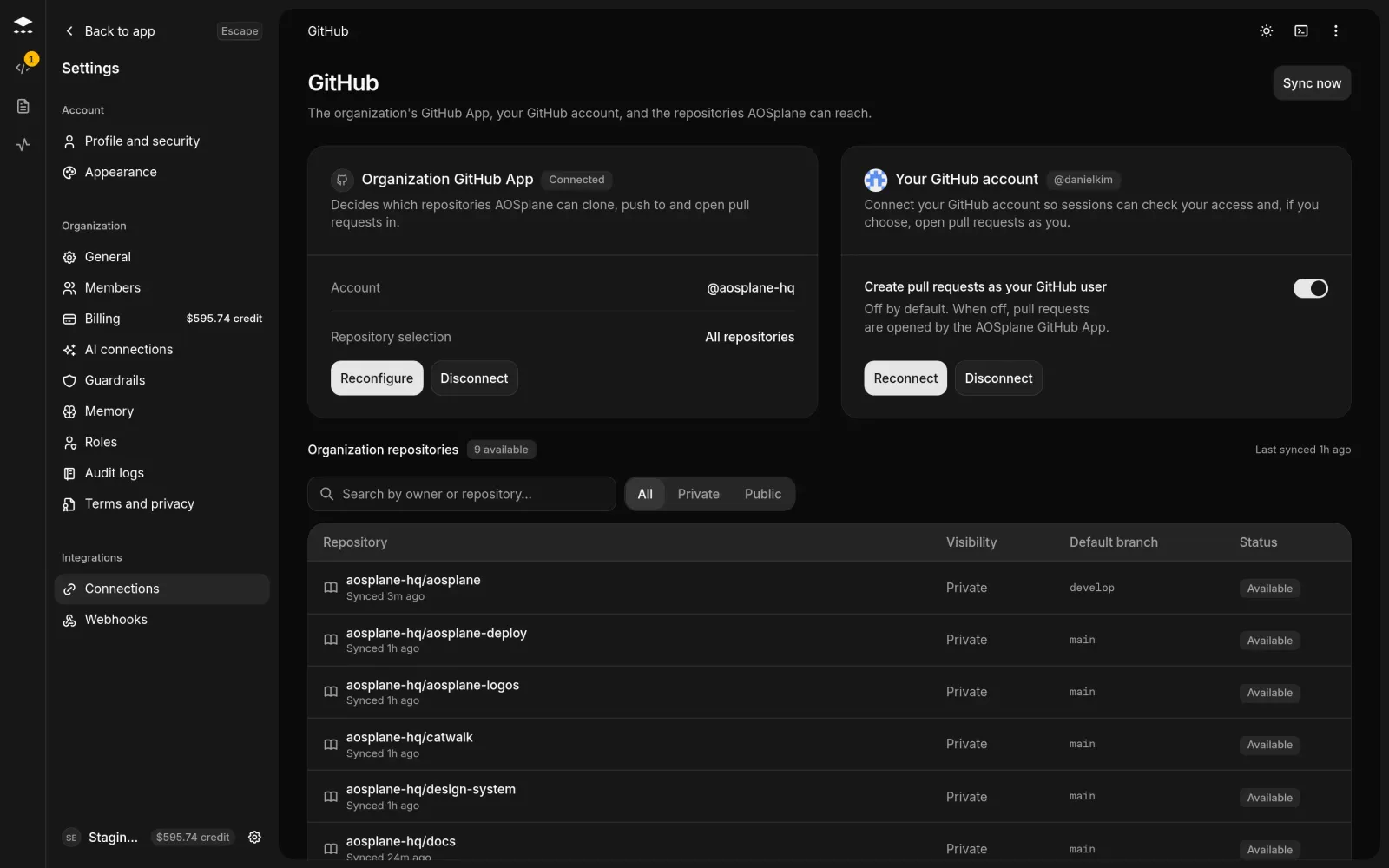
If you aren’t an owner of the GitHub organization, GitHub sends your install request to its owners. Once one approves it, choose Connect again to finish.
Open pull requests as you
Create pull requests as your GitHub user is off by default, so pull requests from your sessions are opened by the AOSplane GitHub App. Turn it on, on the Your GitHub account card, to open them under your own account.
Good to know
- Your account comes first. Installing the App without it fails with “Connect your GitHub account first.”
- To change which repositories the App sees, choose Reconfigure. New repositories appear within a minute or two; admins can choose Sync now to check right away.
- Organization repositories lists what the App can reach, with each one’s visibility, default branch and status (Available, Archived or Disabled).
- Card badges tell you what to fix: Suspended or Disconnected means an admin must reconnect the App, and Expired means choose Reconnect on your account.
- Disconnecting the App stops sessions from cloning or opening pull requests. Disconnecting your account stops pull requests being opened as you.
- Once both are connected, Engineers and admins can mention
@aosplaneon GitHub to start a session or ask for a review. See Reviews.