
Tools
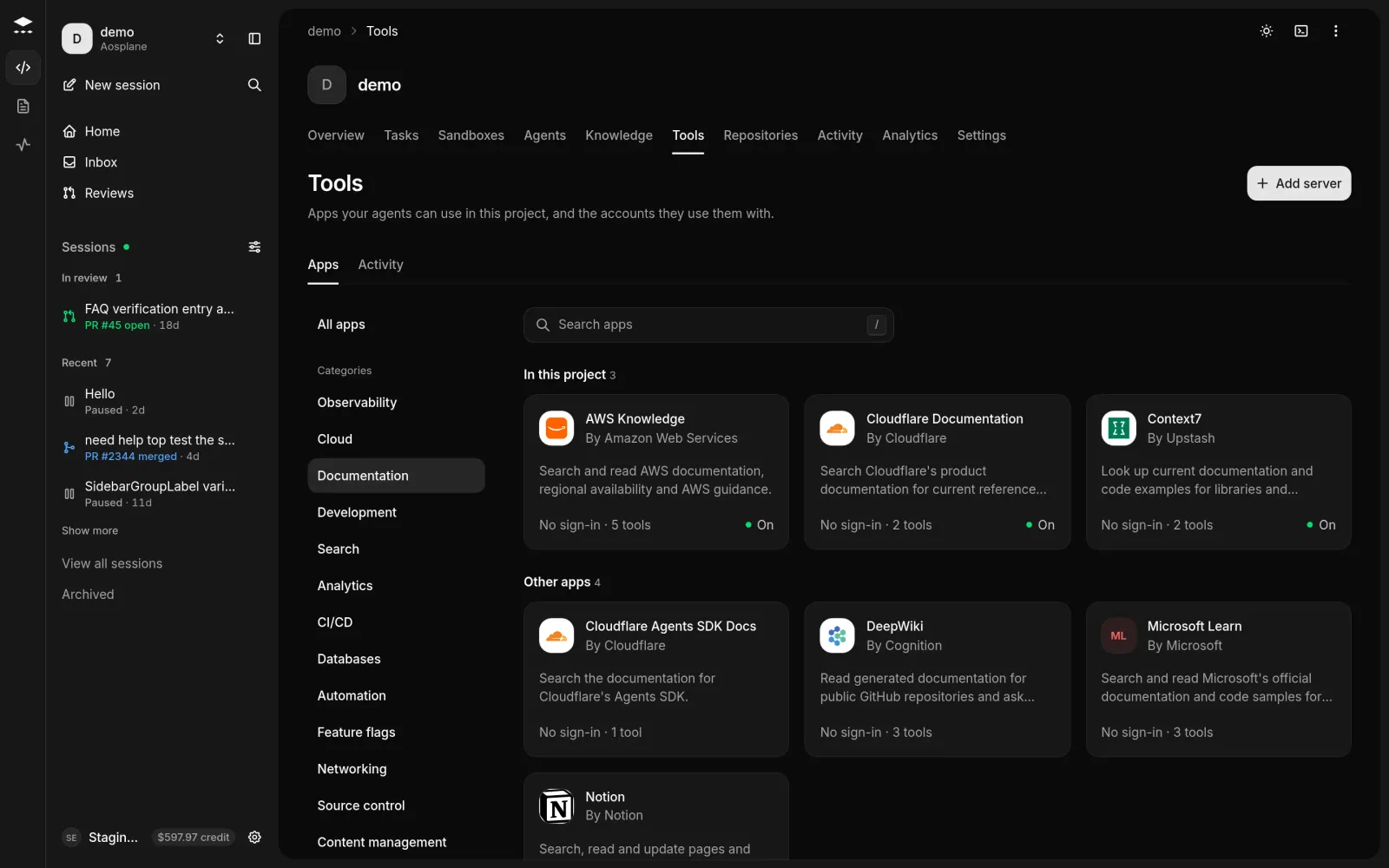
The Tools tab lets a project’s agents work in other apps your team uses, for example to read errors in Sentry or update issues in Linear. Each app offers tools, single actions such as “create issue”. For each project you choose which apps are on, which account agents use, and which tools need a person’s approval.
Engineers, Admins and Owners can open Tools and connect their own accounts. Only Admins and Owners can turn apps on or off, connect the shared account, change project limits and add servers. Viewer and Billing don’t see the tab.
Turn on an app
Find the app
Open the project and choose the Tools tab. Pick a category on the left, or type in Search apps (press / to jump there). Select the app’s card.
Choose whose accounts sessions use
Leave Members can connect their own accounts on so each person’s sessions use their own account when they have one. Turn it off to make every session use the shared account.
Apps marked No sign-in are ready as soon as they’re on. Every other app needs an account before sessions can use it.
Connect an account
Open the app
On the app’s page, choose Connect, or Connect your account if a shared account is already connected.
The app asks an admin to set up sign-in
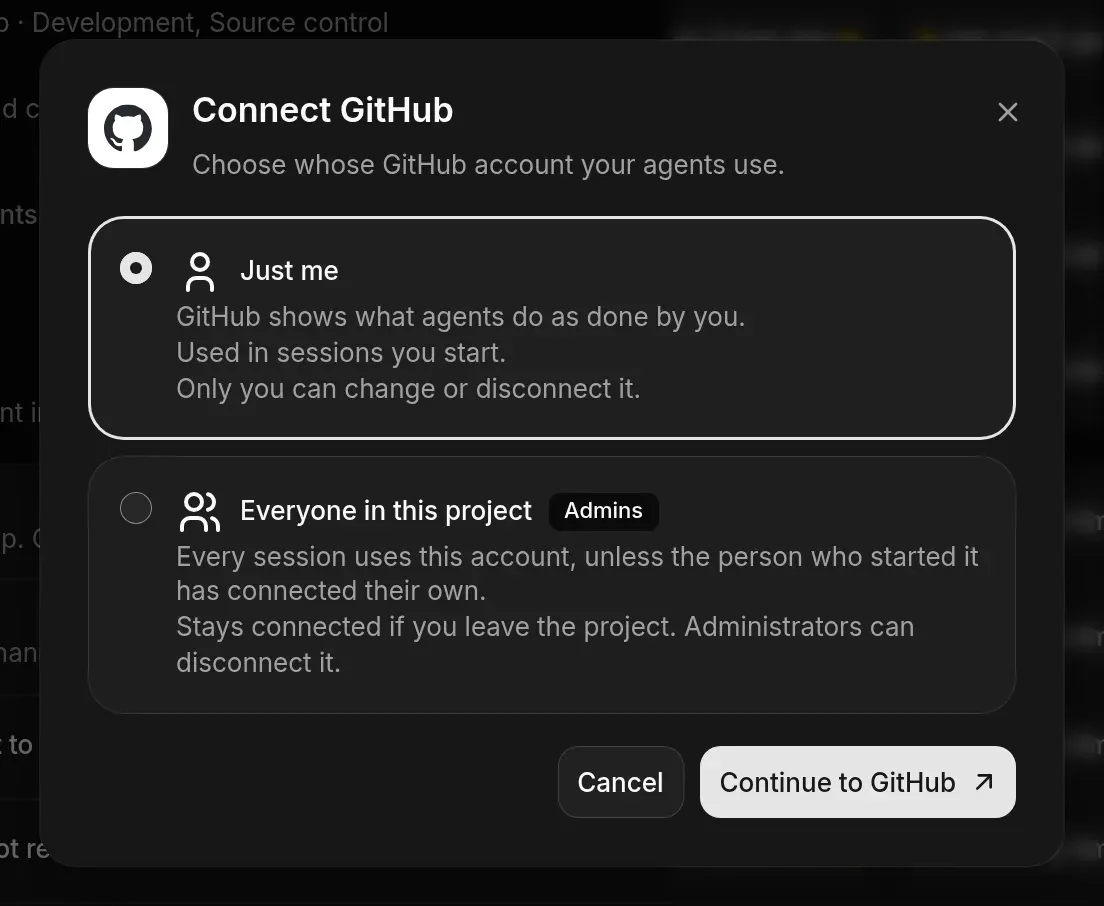
Some apps don’t let AOSplane register itself. The first time someone connects one, an admin sees Set up followed by the app’s name and sign-in. Create an OAuth app in the app’s developer settings with the callback URL shown, paste its Client ID and Client secret, and choose Continue to followed by the app’s name. This is done once for the organization. Until then, members see Sign-in isn’t set up.
Google Cloud apps
Google Cloud apps (such as Cloud Logging) connect without a key. An admin chooses Connect, then Open Cloud Shell, runs the setup command shown, pastes the code it prints and chooses Connect Google Cloud. One connection covers every Google Cloud app for everyone in the project.
Choose which tools need approval
On the app’s page, the Tools tab sets a rule for each tool. Use the switch at the top to choose whose rules you see: Shared account, Your account or Project limit. You can set a rule for a whole group (Read-only, Write or Destructive) or for one tool. Filter tools finds a tool by name.
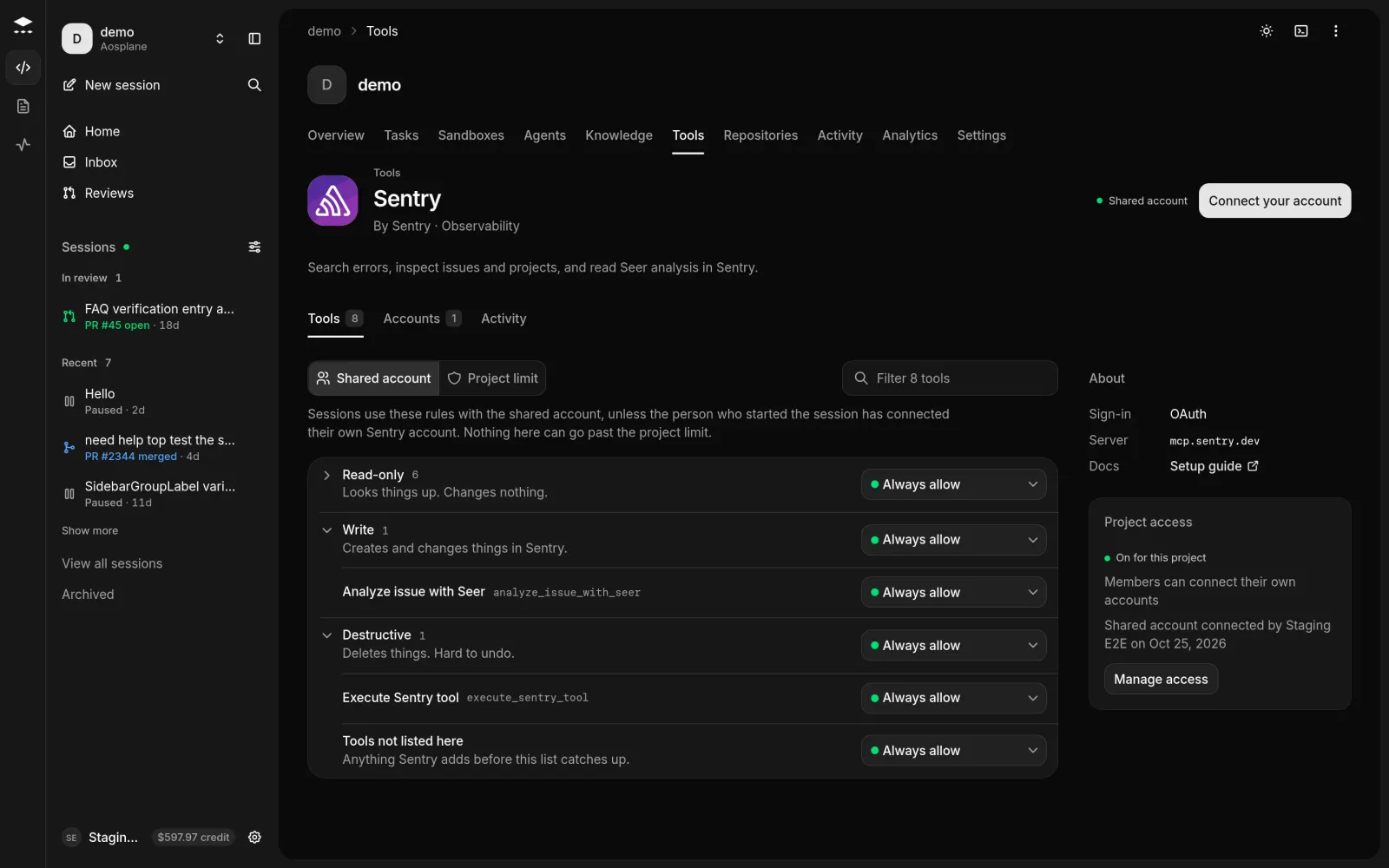
- Account rules can only be stricter than the project limit. Options the limit doesn’t allow show a lock. Admins can choose Change the limit.
- The suggested limits are Always allow for read-only tools, Ask once per session for write tools, and Ask every time for destructive tools.
- The last row, Tools not listed here, covers tools the app adds later. When AOSplane doesn’t know an app’s tools, one All tools rule covers everything. Tools with no rule get Ask every time.
- You can change your own account’s rules. Only admins change the shared account’s rules and the project limit.
What happens in a session
A session’s agent can use every app that’s on in the project and has an account the session can use. When a rule says to ask, the session asks like any other request (see Chat and approve requests). If nobody answers within 2 minutes, the call isn’t made.
A session keeps the apps, accounts and rules it started with, so changes apply to new sessions. Disconnecting an account or removing a server takes effect on the next tool call.
Manage accounts and access
- Accounts tab on an app’s page: the Shared account and Your account, with who connected them and when. Choose Sign in again or Replace key when an account is Signed out or Needs attention, or Disconnect to remove it. Teammates’ own accounts are private and aren’t listed.
- Manage access (admins, in the Project access box): change Members can connect their own accounts, or choose Turn off for this project. Accounts stay connected, so turning the app back on restores access.
What each status on a card means
Add your own server
An admin can add your team’s own MCP server. On the Tools tab, choose Add server, then fill in:
- Name: how the app appears.
- Server URL: an
https://address anyone on the internet can reach (Streamable HTTP only). - Sign-in: Detect automatically (AOSplane checks the server when you save) or API key (each account pastes its own key, with an optional Header name).
- Description and Docs link (optional).
Choose Add server. It appears under Custom servers in every project, and each project turns it on separately. On its page, the ⋯ menu offers Edit, Refresh tools and Remove. Changing its address signs out every connected account. Removing it disconnects every account in every project.
See tool activity
The Activity tab on the Tools page lists every tool call agents made in the project and what decided it. Engineers see calls from their own sessions; Admins and Owners see everyone’s. Filter by app, result, time (up to Last 30 days) or tool name, and select a row to see the rule, the account and the session.
AOSplane records that a tool was called and what decided it. It never stores what the call sent or what came back.
Good to know
- Your organization’s Guardrails can limit which tools agents may call in every project. See Organization and project settings.
- Project Settings › Agent tools is a different, fixed list of built-in AOSplane tools for AOSplane’s Slack assistant, not for coding agents. See Slack.