
Linear
Start sessions from Linear issues, in AOSplane or right from Linear
Connect your Linear workspace to browse issues in AOSplane and start a session from any of them. Install the AOSplane agent in Linear too, and your team can hand an issue to AOSplane without leaving Linear.
Owners, Admins and Engineers can connect Linear and manage the rules that pick a project for each issue. Only Owners and Admins install the AOSplane agent in Linear.
Connect Linear
Start a session from an issue
Find the issue
On the Issues tab, search by title or key (likeENG-482), or filter by team, state and assignee.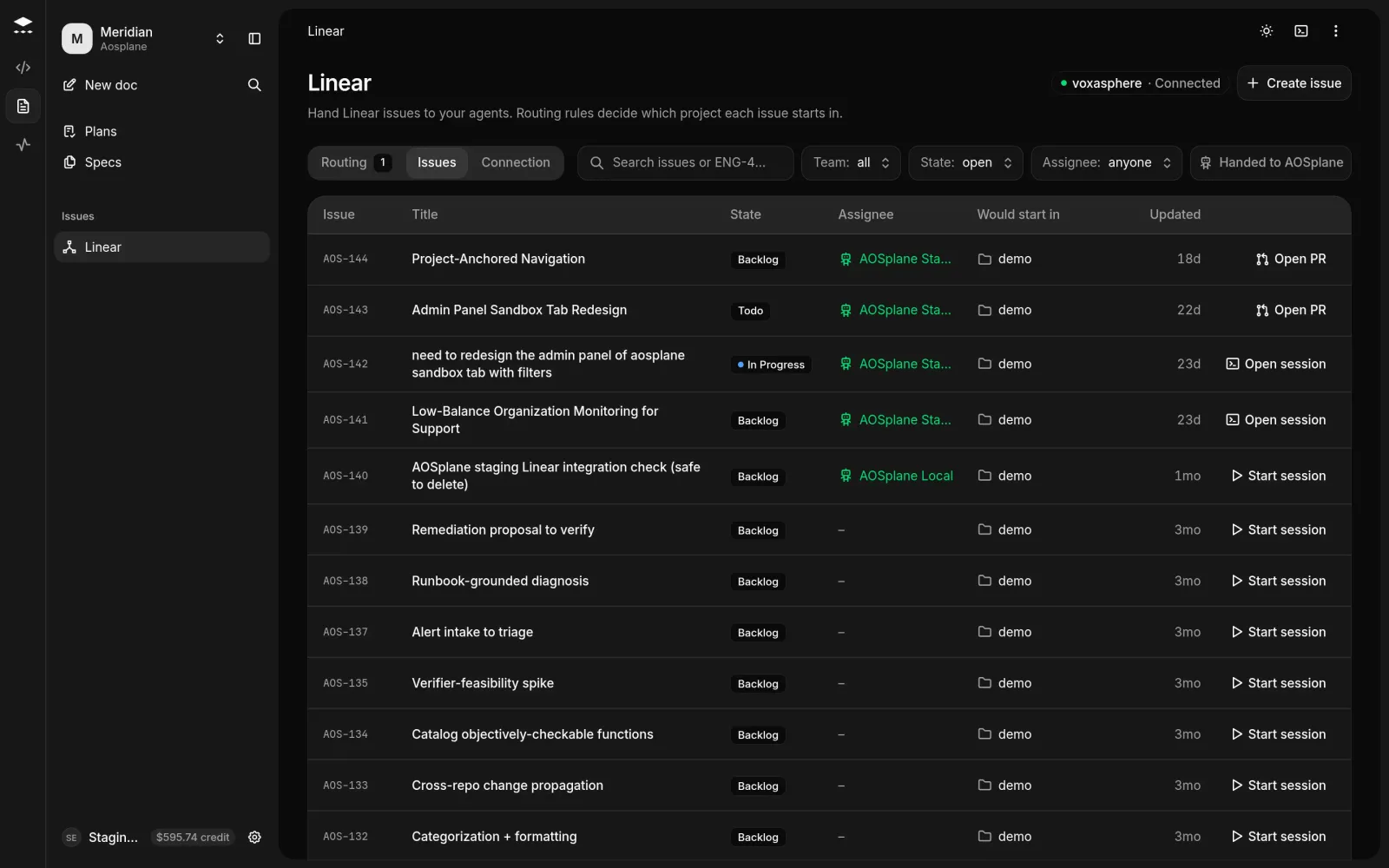
Hand issues to AOSplane from Linear
Install the agent
On the Connection tab, under AOSplane agent, choose Install agent and approve it in Linear.Add rules
On the Routing tab, choose Add rule. Pick a Linear team, which issues it covers (Any issue, Have a label or In a Linear project), the project to Start sessions in and an Agent. Choose Save rule.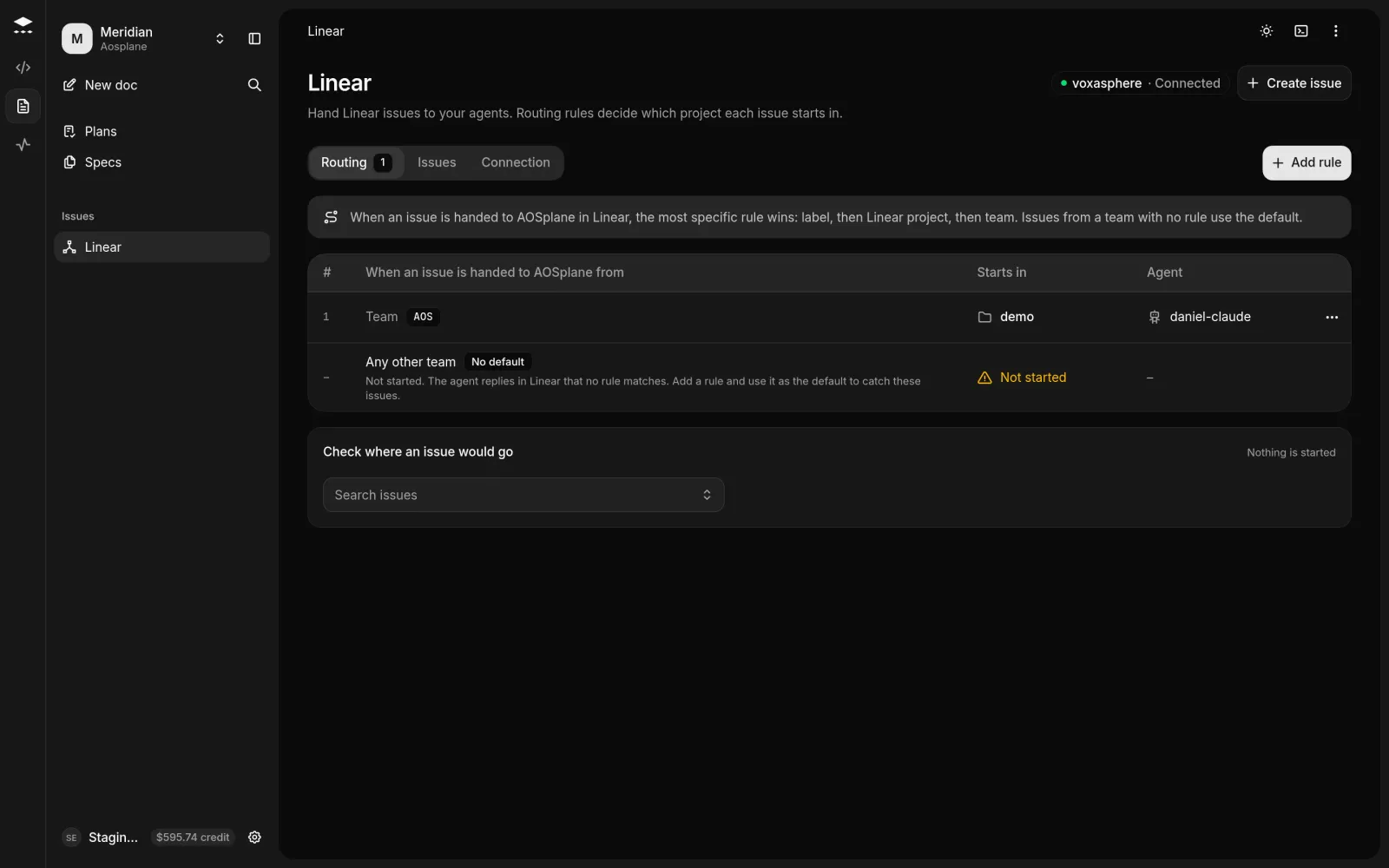
Good to know
- Replies in the Linear issue continue the same session.
- Sessions started from Linear run as the person who installed the agent, so they need a connected GitHub account and an AI account.
- A handed-off issue is added to the project’s tasks.
- Check where an issue would go, on the Routing tab, shows which rule an issue matches.
- Create issue at the top of the page files a new Linear issue. Turn on Hand to AOSplane to start work on it at once.
- Disconnecting Linear stops AOSplane reading and updating issues. Sessions already linked to issues keep their links.
- The product manager reads Linear for evidence and can file its brief as a Linear issue.