
Organization and project settings
Organization settings apply to every project. Project settings apply to one project. Open organization settings from the account row at the bottom of the sidebar: choose Settings, or press Cmd+, (Ctrl+, on Windows and Linux). Back to app, or Esc, takes you back.
The Settings menu has three groups: Account (your own pages, see Your account), Organization and Integrations. You only see the pages your role can use.
Look up your organization’s details
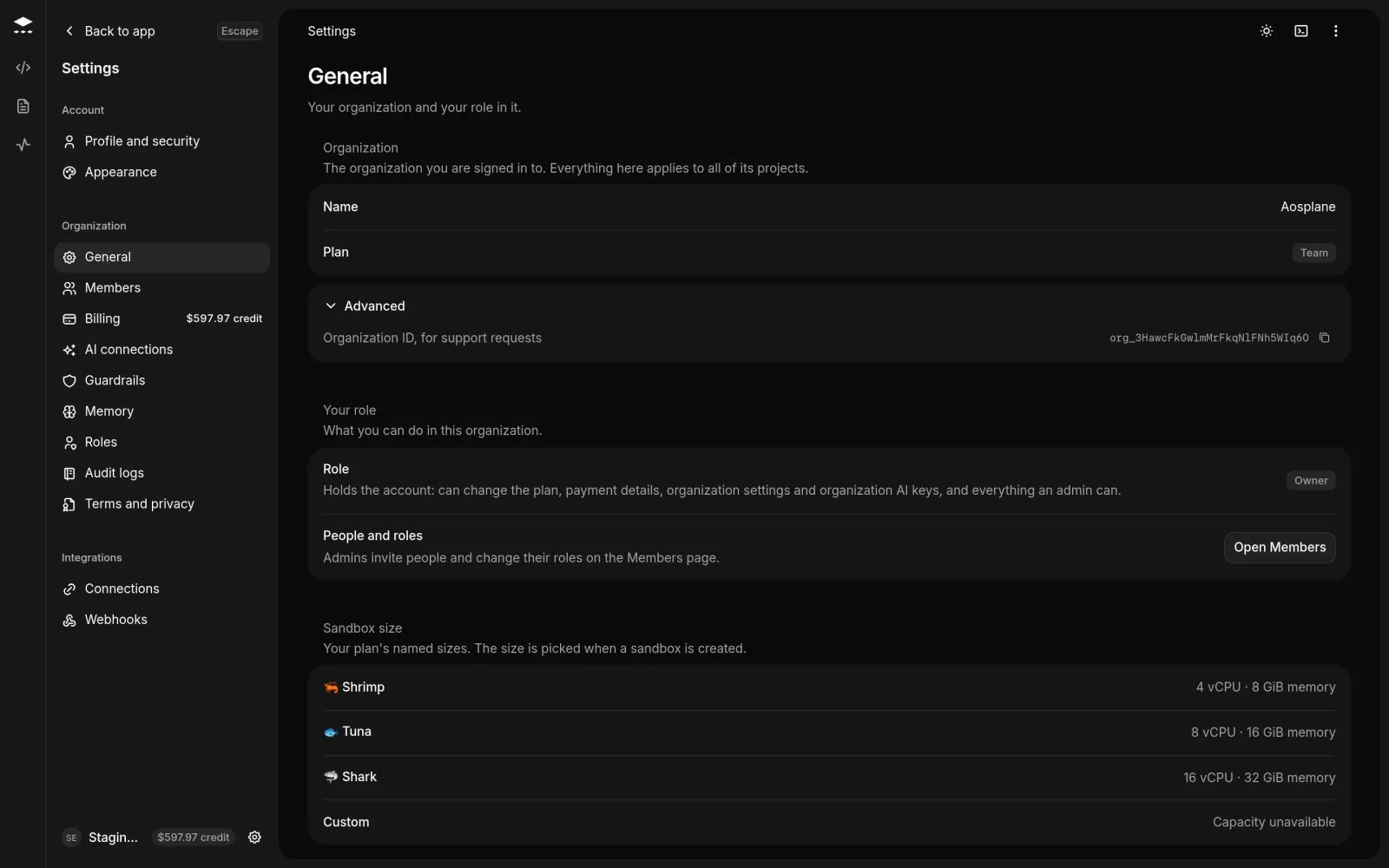
Choose Settings. General opens first and only shows information:
- Organization: the Name and Plan. Expand Advanced for the Organization ID, and copy it when you contact support.
- Your role: your Role and what it lets you do. Owners and admins get Open Members next to People and roles.
- Sandbox size: the sizes your plan includes, with their vCPU and memory, or the custom spec AOSplane set for your organization.
Set guardrails for every session
Guardrails are limits every session in your organization stays within. Project settings can go below them, never above.
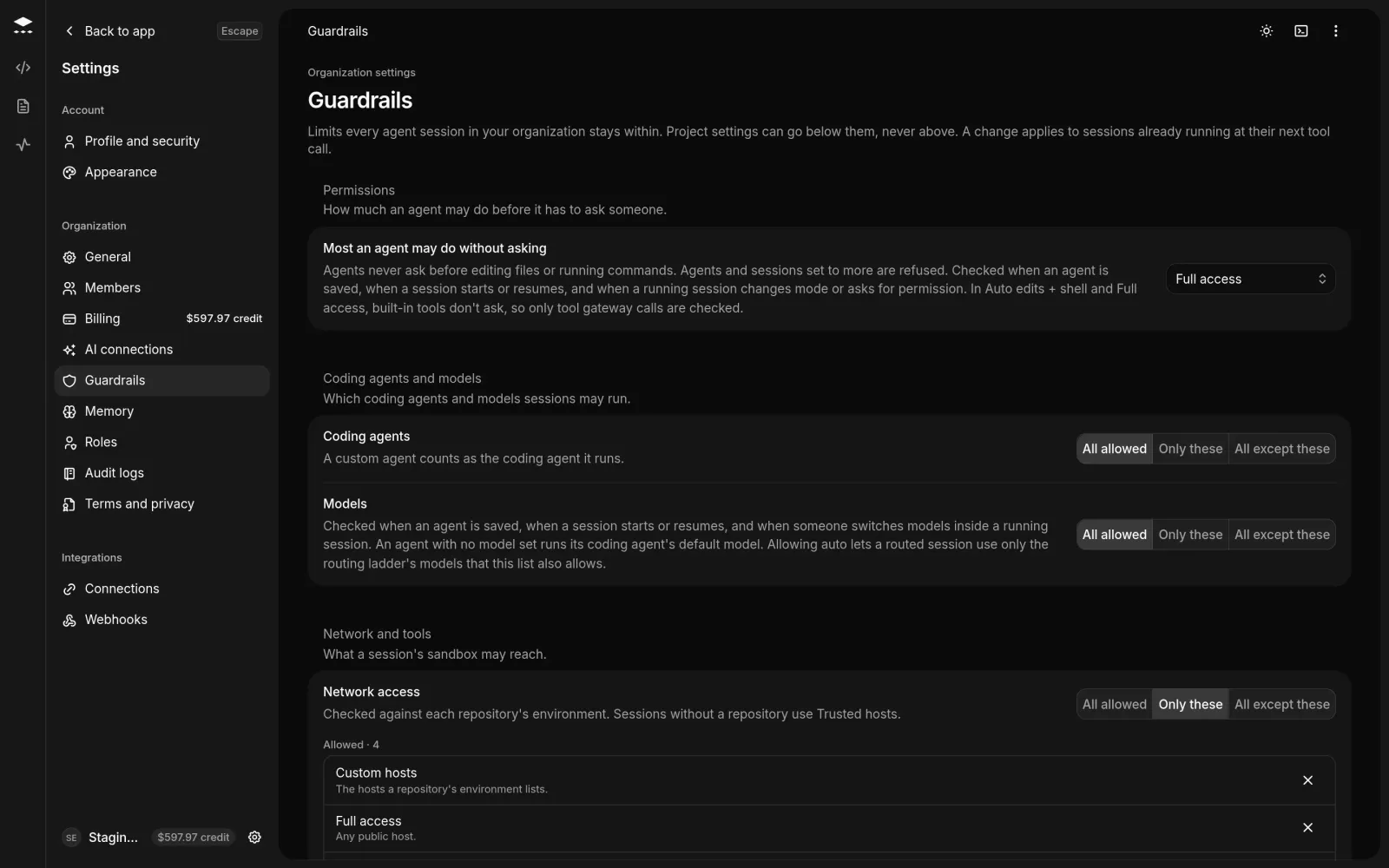
A saved change applies to new and resumed sessions, and to running sessions at their next tool call. Agents and sessions set to more than a guardrail allows are refused.
Set up the product manager role
Roles is where the account owner sets up the product manager your teams start product conversations with.
- Product manager: turns the role on or off. Starts at shows how deep it goes, which you set under Settings › AI connections.
- House rules: what every conversation follows, such as who your users are, words to use, and what a brief must always say.
- What it reads: turn Repository, Docs and Connected apps on or off. Pick a project to see that project’s sources.
Choose Save to apply your changes.
Look up a project’s settings
Open the project and choose its Settings tab. General opens first.
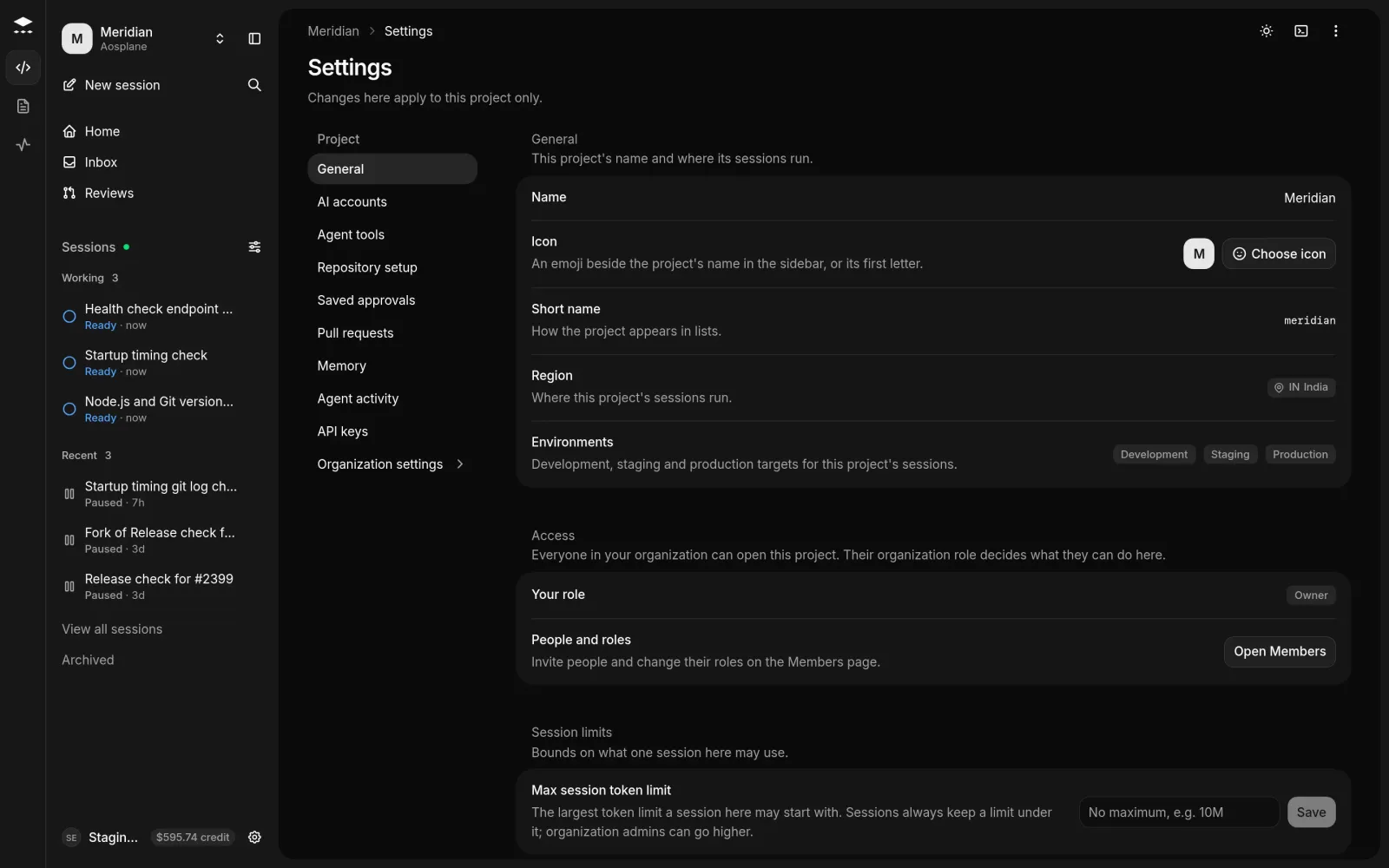
- General: the Name, Icon (an emoji shown in the sidebar), Short name, Region where sessions run, and Environments.
- Access: your role here, which is your organization role.
- Session limits: the Max session token limit a session in this project may start with.
- Issue tools: where issues handed to AOSplane in Linear start sessions.
The menu also has AI accounts, Agent tools, Repository setup, Saved approvals, Pull requests, Memory, Agent activity and API keys, and Organization settings to go up a level.
Good to know
- Only owners and admins can set a project’s Icon and Max session token limit, and only they can go above it.
- You choose a project’s name and region when you create it. They can’t be changed afterwards in the dashboard.
- Viewers and Billing don’t see Agent tools or Repository setup in project settings.