
Audit logs
The audit log records every change people, API keys and AOSplane made in your organization, such as starting a session, answering a permission request, stopping a sandbox or changing the plan. Each entry says who, what, from where, and whether it worked. Use it to answer “who did this?” or to check a failure.
Find a change
Pick a period
Choose 24 hours, 7 days (the default), 30 days or 90 days, or Custom for your own dates.
Pick what to list
Changes lists everything that changed something, Failures only what didn’t work, and Everything adds views too.
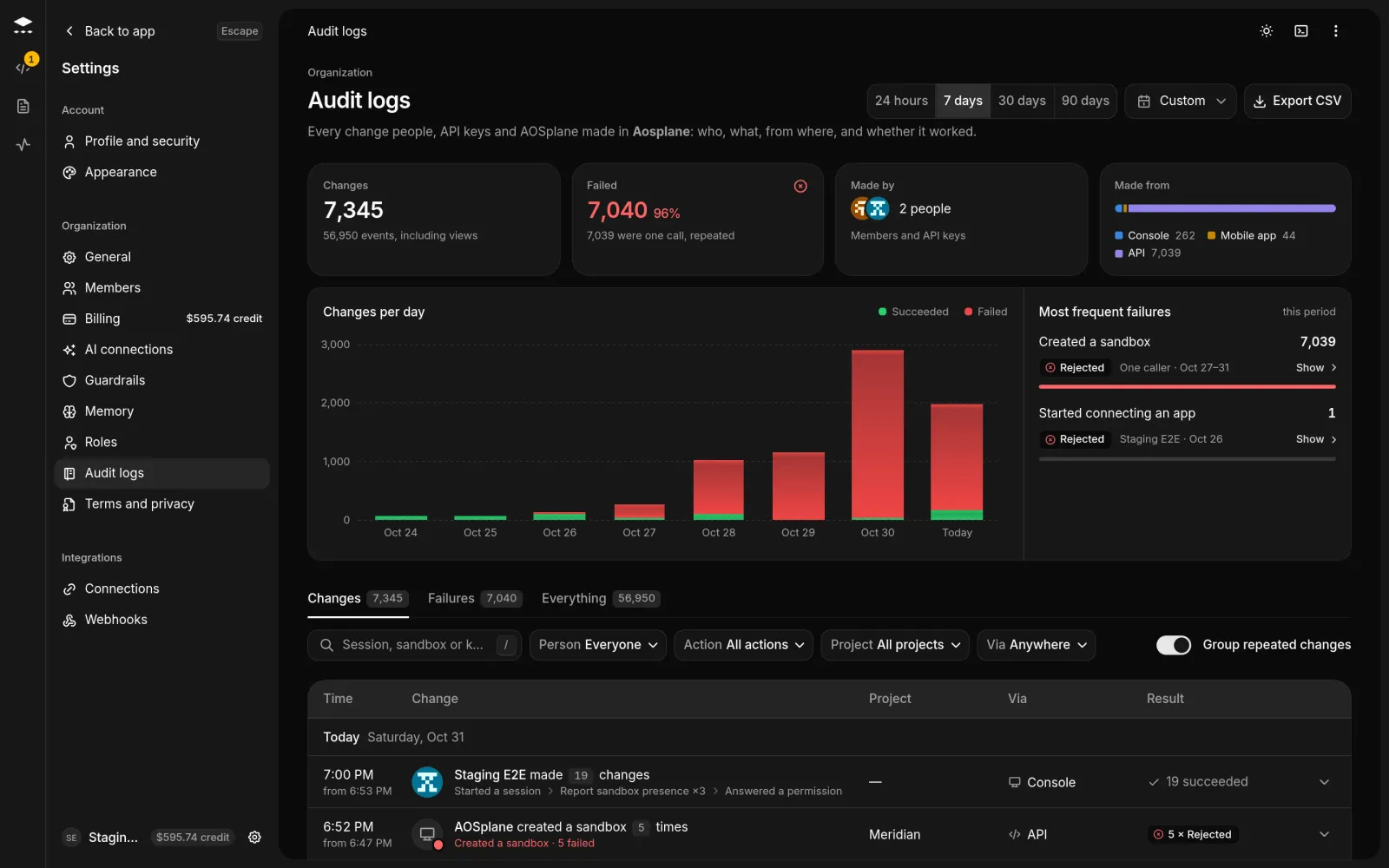
Without filters, the page opens with a summary: how many Changes and how many Failed, who they were Made by and Made from, a Changes per day chart (select a bar to show that day), and the Most frequent failures.
Read an entry
Each row shows the Time, the Change, the Project, Via and the Result. The details panel has three sections:
- Who: the person or API key, the IP address it came From, and Via where, including the browser or app. All by them lists everything else they did.
- What: the session, sandbox, snapshot or key that changed, with its ID and project.
- When: the time in your time zone and in UTC, and how long it took.
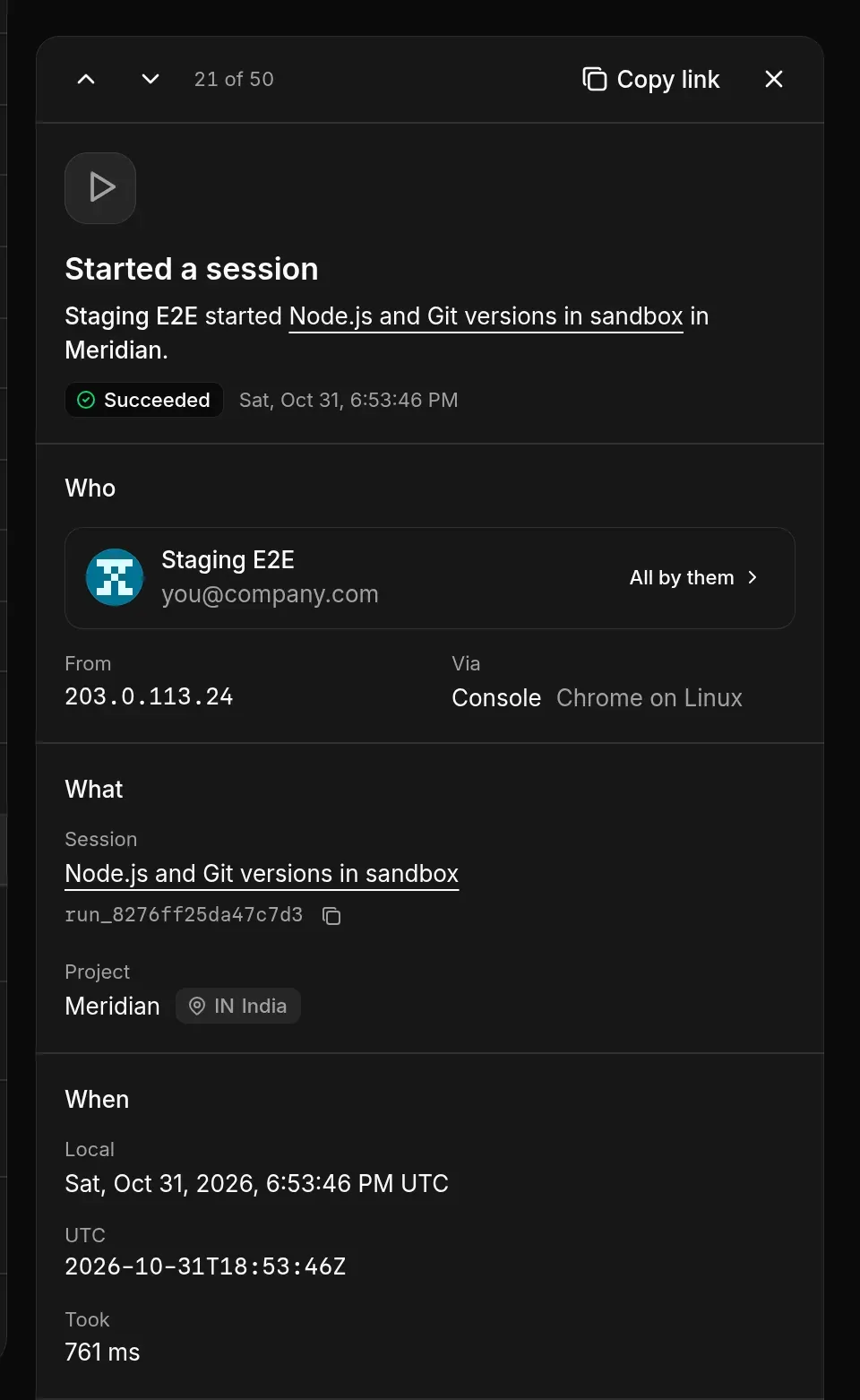
If the change failed, the top of the panel says why. Step through entries with J and K. Copy link copies a link to the entry and Copy as JSON copies all of it.
Good to know
- Via can be Console, Desktop app, Mobile app, API, Slack or AOSplane Support.
- Group repeated changes is on by default: changes one person made close together fold into one row you can expand.
- Each region keeps its own log. The Region filter appears when your projects are in more than one region.
- Export CSV downloads what matches your period and filters, up to 10,000 rows at a time.