
Create and configure an agent
Save a coding agent, model, instructions and approval settings to reuse
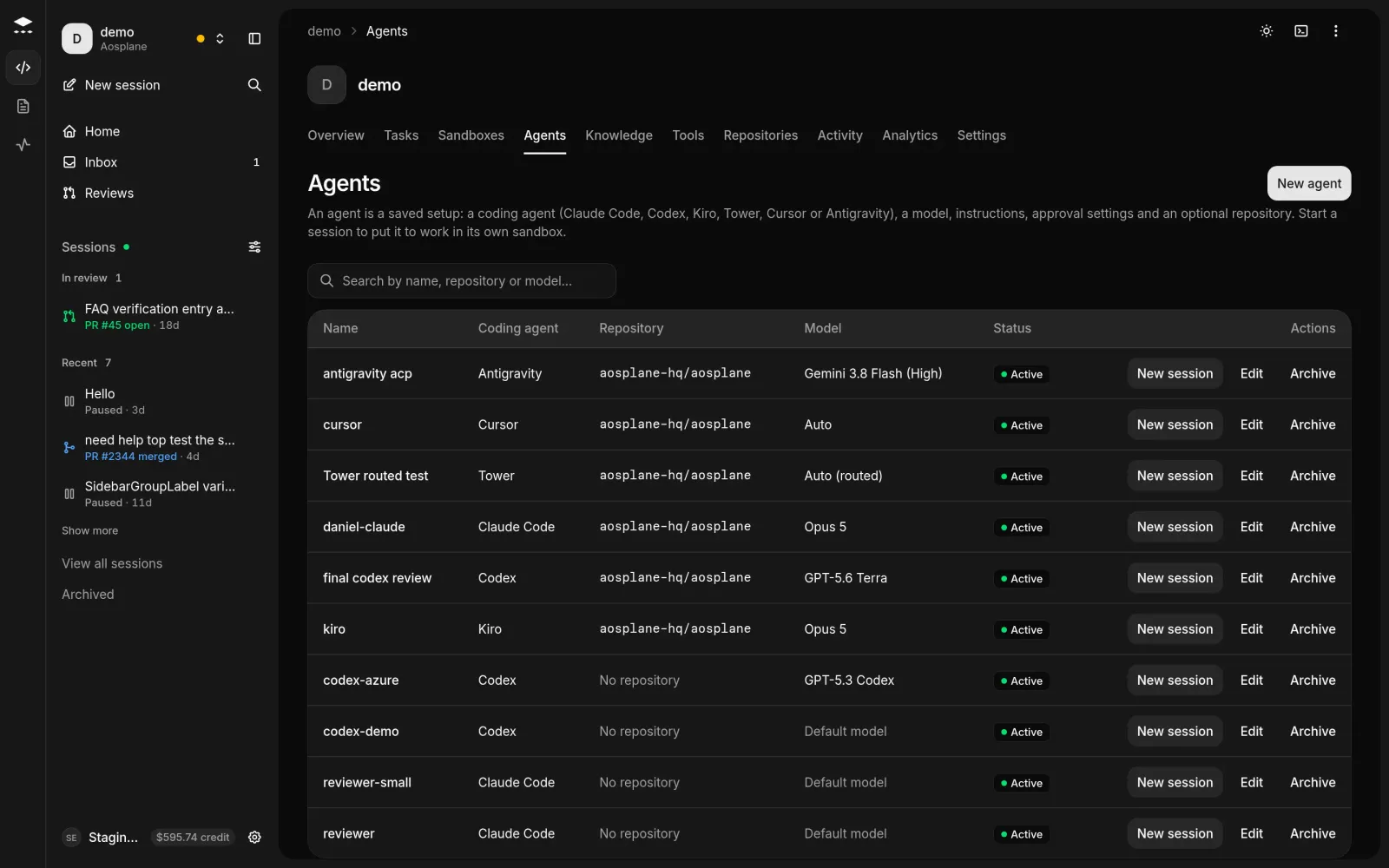
An agent is a saved setup for sessions: a coding agent, a model, standing instructions, how often it asks first, and an optional repository. You pick one each time you start a session.
Owners, Admins and Engineers can create, edit and archive agents. Other roles can see them.
Create an agent
Name it and pick a coding agent
Enter a Name, then choose the Coding agent: Claude Code, Codex, Kiro (preview), Tower (preview), Cursor (preview) or Antigravity (preview).
Choose the code and model
Pick a Repository, or No repository. Leave Model on Default model, pick one from the list, or choose Custom model ID….
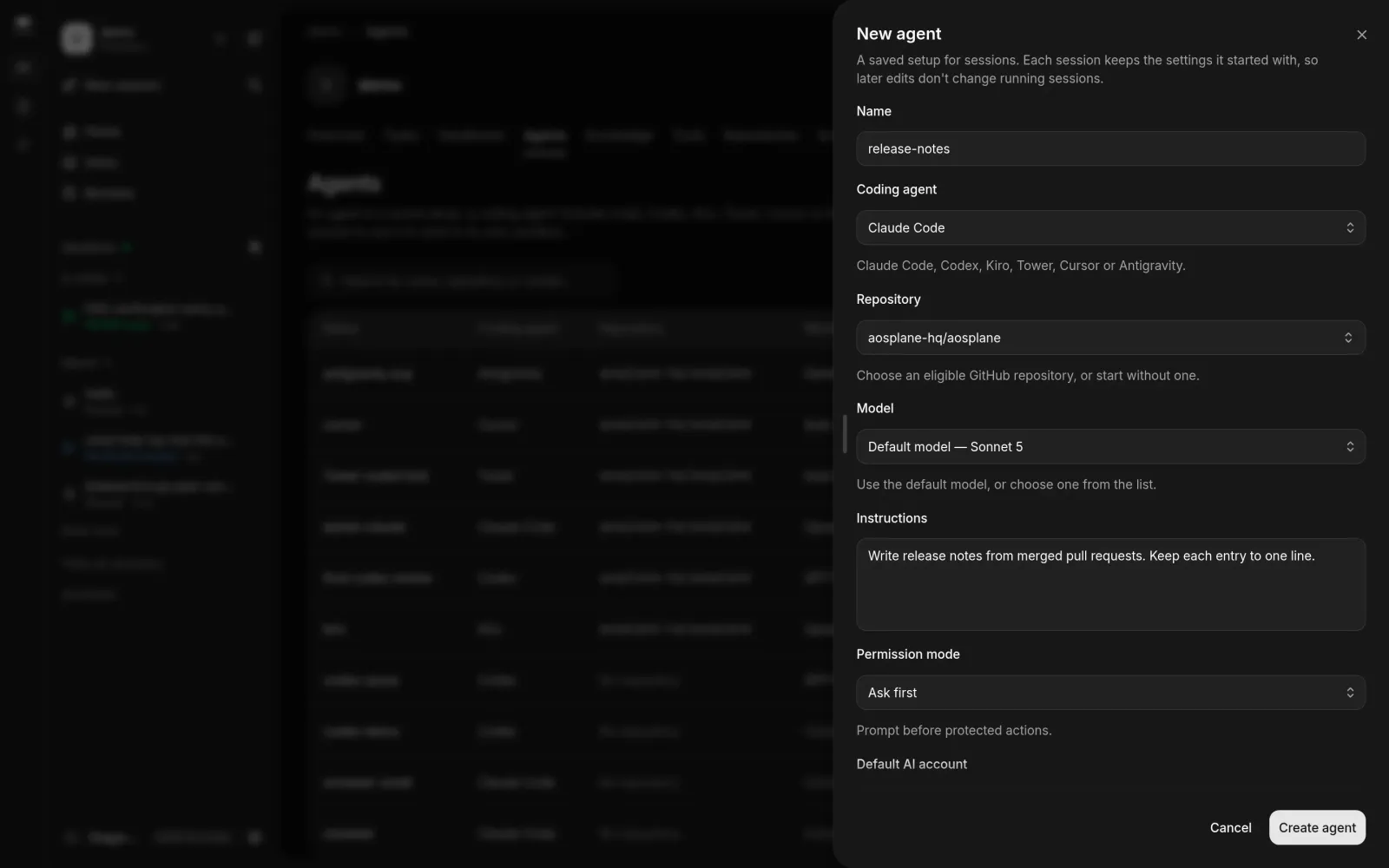
Choose a permission mode
People can pick a different mode for one session when they start it.
Edit or archive an agent
On the agent’s row, choose Edit, change the settings, and choose Save changes. To retire it, choose Archive, then Archive in Archive {name}?.
Good to know
- Edits apply to new sessions only. Running sessions keep the settings they started with.
- The repository is set when you create the agent. For another repository, create another agent.
- New session on a row opens the composer with that agent picked.
- Archiving hides the agent from new sessions and can’t be undone. Its past sessions stay.
- A row that says Relink required needs GitHub access again: choose Relink GitHub. See GitHub.
- Claude Code agents also have Thinking (Default, Adaptive or Off) and Default effort in the edit form.