> For clean Markdown of any page, append .md to the page URL.
> For a complete documentation index, see https://docs.aosplane.io/llms.txt.
> For AI client integration (Claude Code, Cursor, etc.), connect to the MCP server at https://docs.aosplane.io/_mcp/server.
# Review changes and open a pull request
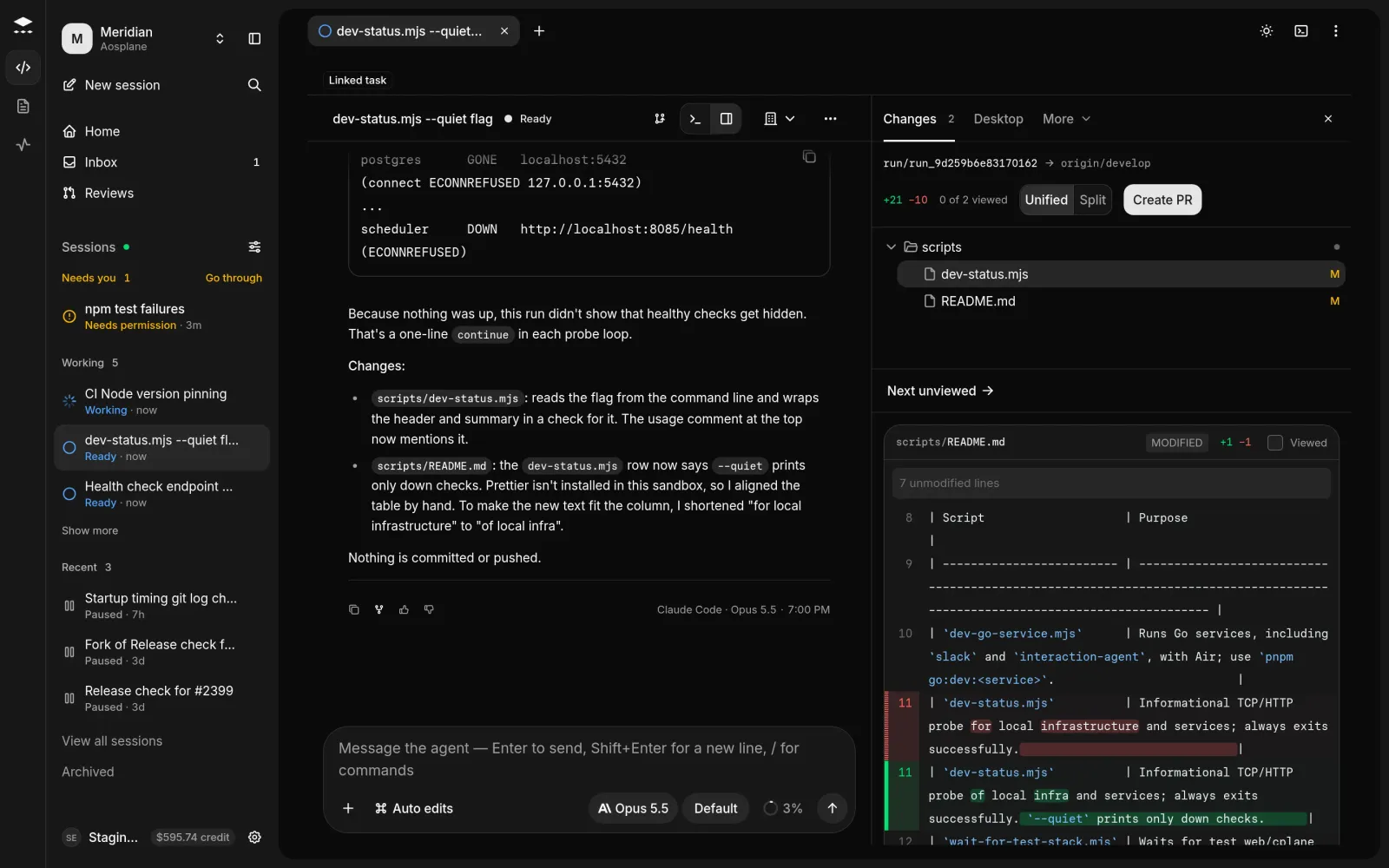
Every session works on its own branch. The **Changes** tab shows the diff as the agent works, and from there you can comment, open a pull request and follow it to merge.
## Review the changes
#### Open the Changes tab
On the session page, open **Changes** in the side panel (⌘⇧G). It lists every changed file with its diff.
#### Read the diff
Switch between **Unified** and **Split**, and use **Filter files…** to find a file when more than eight have changed. Tick **Viewed** on each file you've read.
#### Comment on a line
Hover a line and choose **Comment on this line**. Type in **Leave a comment for the agent…** and choose **Add annotation**. Your note goes with your next message.
## Open a pull request
#### Ask for the pull request
In the **Changes** tab, choose **Create PR**. The agent commits its work and opens the pull request, with a title and description it writes.
#### Or write it yourself
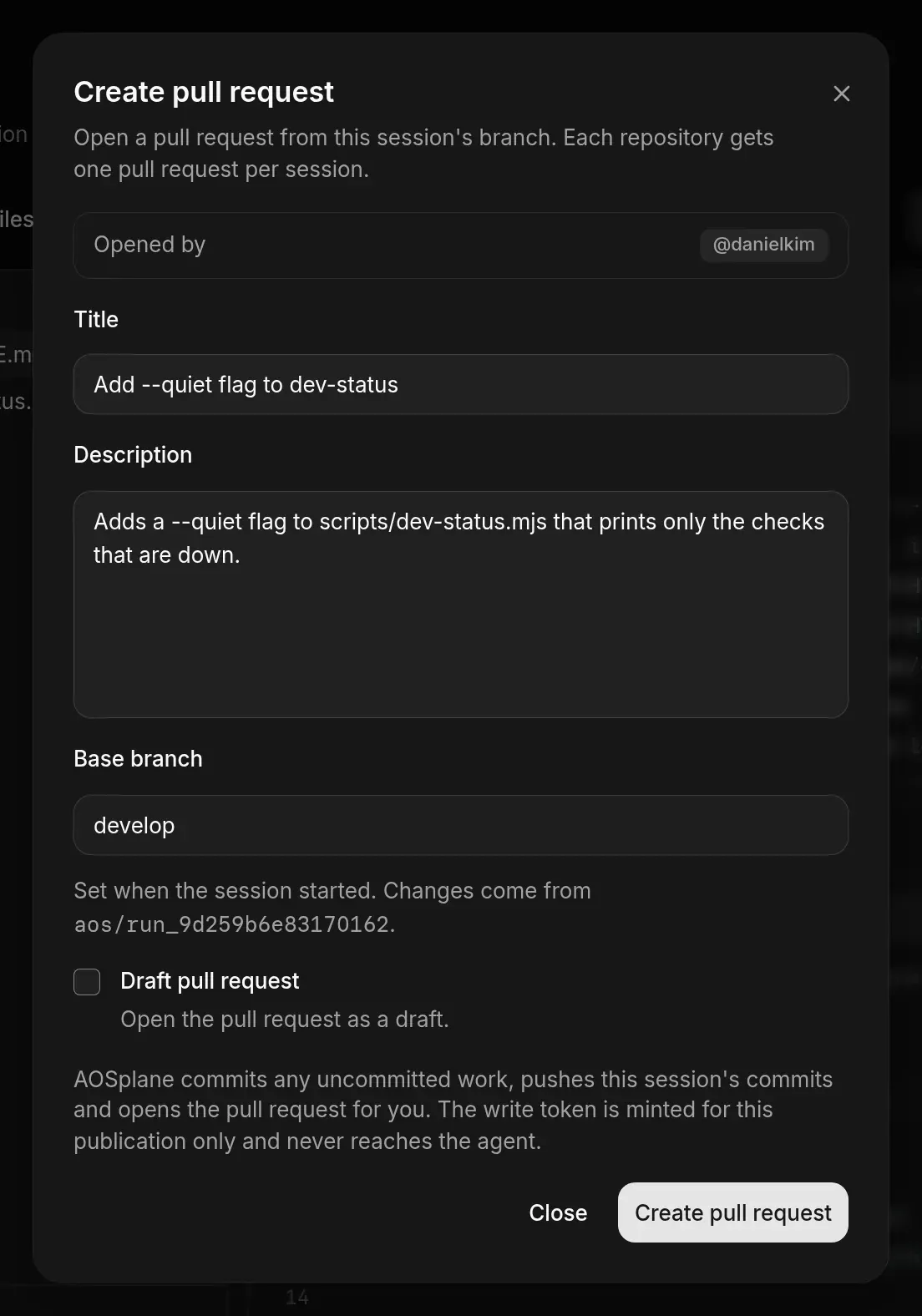
Choose the branch button at the top of the session, then **Open changes page**. Choose **Create PR**, fill in **Title** and **Description**, tick **Draft pull request** if you like, and choose **Create pull request**.
#### Watch it land
The pull request shows at the top of the session, such as **#42 · Open**. Later commits make the button say **Update PR**.
On the changes page, AOSplane commits any uncommitted work, pushes the session's commits and opens the pull request for you. **Opened by** shows whether it opens as you (your GitHub login) or as the AOSplane App.
## Get it to merge
Choose the pull request at the top of the session. It says **Ready to merge**, or lists what stands in the way, such as failed checks, review comments or merge conflicts.
* **Ask agent to fix** sends failed checks to the agent. **Ask agent to rebase** handles merge conflicts.
* **Send to agent** passes open review comments to the agent.
* **Review and merge** opens the pull request's review page, where you merge it. See [Code review](/reviews).
## Good to know
* Each repository gets one pull request per session.
* To commit or push without a pull request, choose the branch button at the top of the session, then **Commit or push**. Write a **Commit message** and choose **Commit all & push**, or **Push only**.
* **Create PR** in the **Changes** tab works while the session is live. The changes page's **Create PR** and **Commit or push** need your GitHub account connected, and **Commit or push** needs the Owner, Admin or Engineer role. See [GitHub](/github).
* A session started with **Loop until checks pass** opens a draft pull request by itself once the checks pass. See [Start a session](/start-a-session#loop-until-the-checks-pass).
* Admins choose what happens when CI fails on an agent's pull request in the project's **Settings** › **Pull requests**.
## Related
* [Session chat](/session-chat)
* [Code review](/reviews)
* [Repositories](/repositories)