> For clean Markdown of any page, append .md to the page URL.
> For a complete documentation index, see https://docs.aosplane.io/llms.txt.
> For AI client integration (Claude Code, Cursor, etc.), connect to the MCP server at https://docs.aosplane.io/_mcp/server.
# Organization and project settings
**Organization settings** apply to every project. **Project settings** apply to one project. Open organization settings from the account row at the bottom of the sidebar: choose **Settings**, or press Cmd+, (Ctrl+, on Windows and Linux). **Back to app**, or Esc, takes you back.
The Settings menu has three groups: **Account** (your own pages, see [Your account](/account)), **Organization** and **Integrations**. You only see the pages your role can use.
## Look up your organization's details
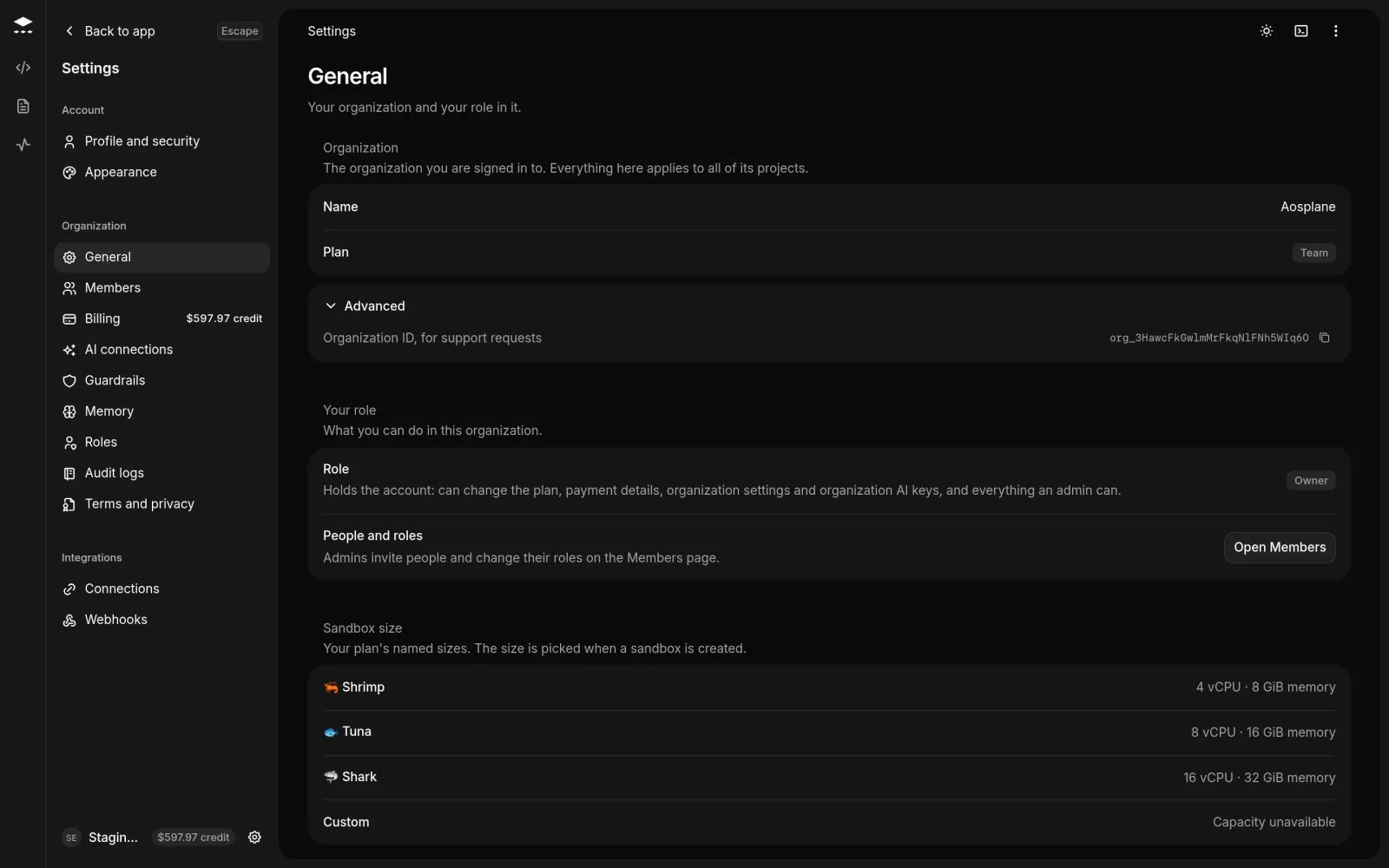
Choose **Settings**. **General** opens first and only shows information:
* **Organization**: the **Name** and **Plan**. Expand **Advanced** for the **Organization ID**, and copy it when you contact support.
* **Your role**: your **Role** and what it lets you do. Owners and admins get **Open Members** next to **People and roles**.
* **Sandbox size**: the sizes your plan includes, with their vCPU and memory, or the custom spec AOSplane set for your organization.
## Set guardrails for every session
**Guardrails** are limits every session in your organization stays within. Project settings can go below them, never above.
> **Note**
>
> Owners and Admins can open **Guardrails**. Only the owner can change them.
#### Open Guardrails
In **Settings**, choose **Guardrails**.
#### Set the limits you need
Leave a setting at **No limit**, **Platform default** or **All allowed** to let projects decide. For lists of agents, models or servers, choose **Only these** or **All except these** and pick from the list. See the table below.
#### Save
Choose **Save** in the bar at the bottom, or **Discard** to undo.
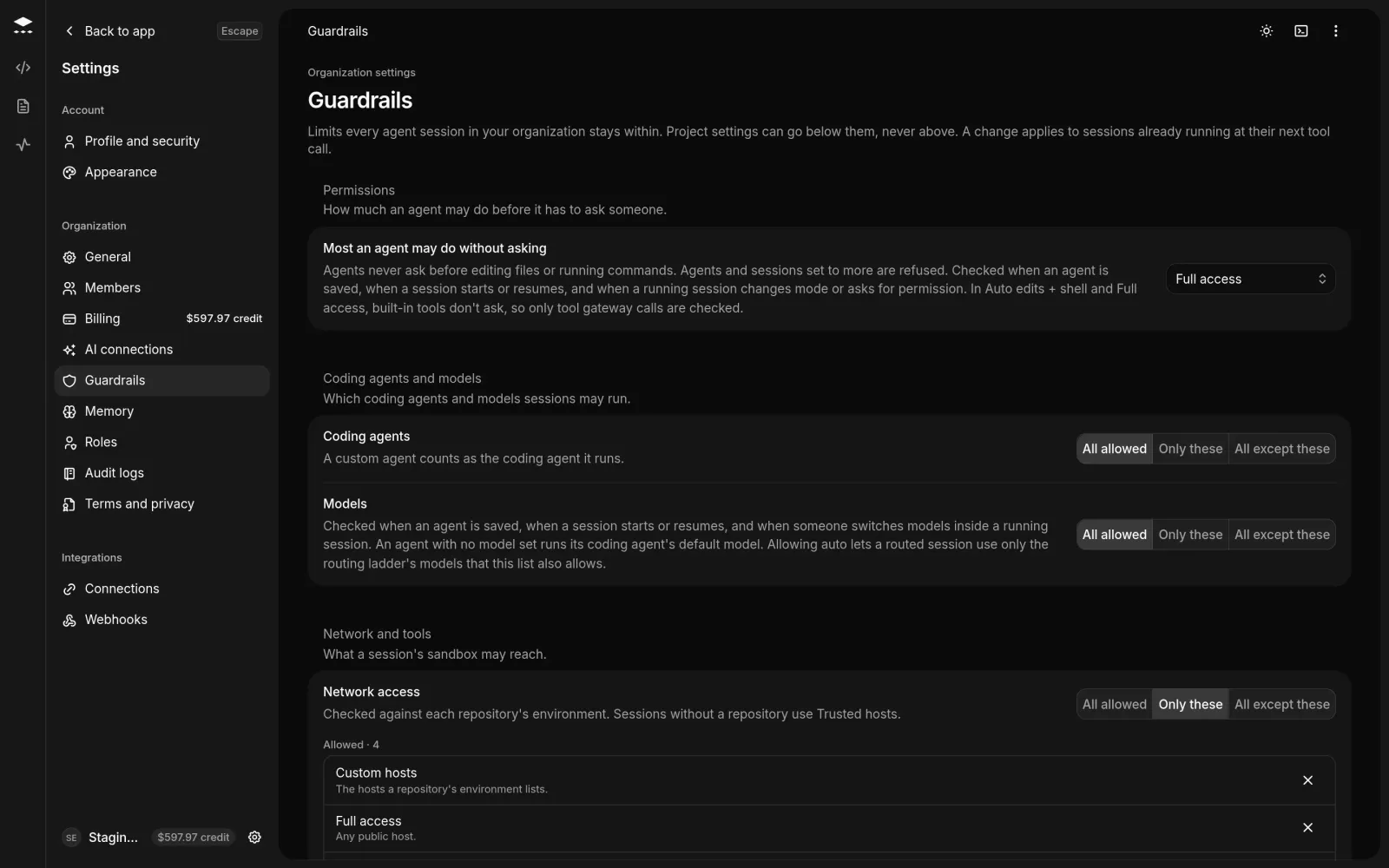
| Section | What you can limit |
| ---------------------------- | -------------------------------------------------------------------------------------------------------------------------------------------- |
| **Permissions** | **Most an agent may do without asking**: **Ask first**, **Auto edits**, **Auto edits + shell** or **Full access**. |
| **Coding agents and models** | Which **Coding agents** and **Models** sessions may run. |
| **Network and tools** | **Network access** (**No network**, **Trusted hosts**, **Full access**, **Custom hosts**) and which **MCP servers** projects may be granted. |
| **Delegation** | Whether **Agents may delegate tasks to other agents**, how deep, and how many tasks one session may run at once. |
| **Sandboxes and sessions** | The **Largest sandbox** and the **Longest session**, from 30 minutes to 7 days. |
A saved change applies to new and resumed sessions, and to running sessions at their next tool call. Agents and sessions set to more than a guardrail allows are refused.
## Set up the product manager role
**Roles** is where the account owner sets up the [product manager](/product-manager) your teams start product conversations with.
> **Note**
>
> Only the owner sees **Roles**.
* **Product manager**: turns the role on or off. **Starts at** shows how deep it goes, which you set under **Settings** › **AI connections**.
* **House rules**: what every conversation follows, such as who your users are, words to use, and what a brief must always say.
* **What it reads**: turn **Repository**, **Docs** and **Connected apps** on or off. Pick a project to see that project's sources.
Choose **Save** to apply your changes.
## Look up a project's settings
Open the project and choose its **Settings** tab. **General** opens first.
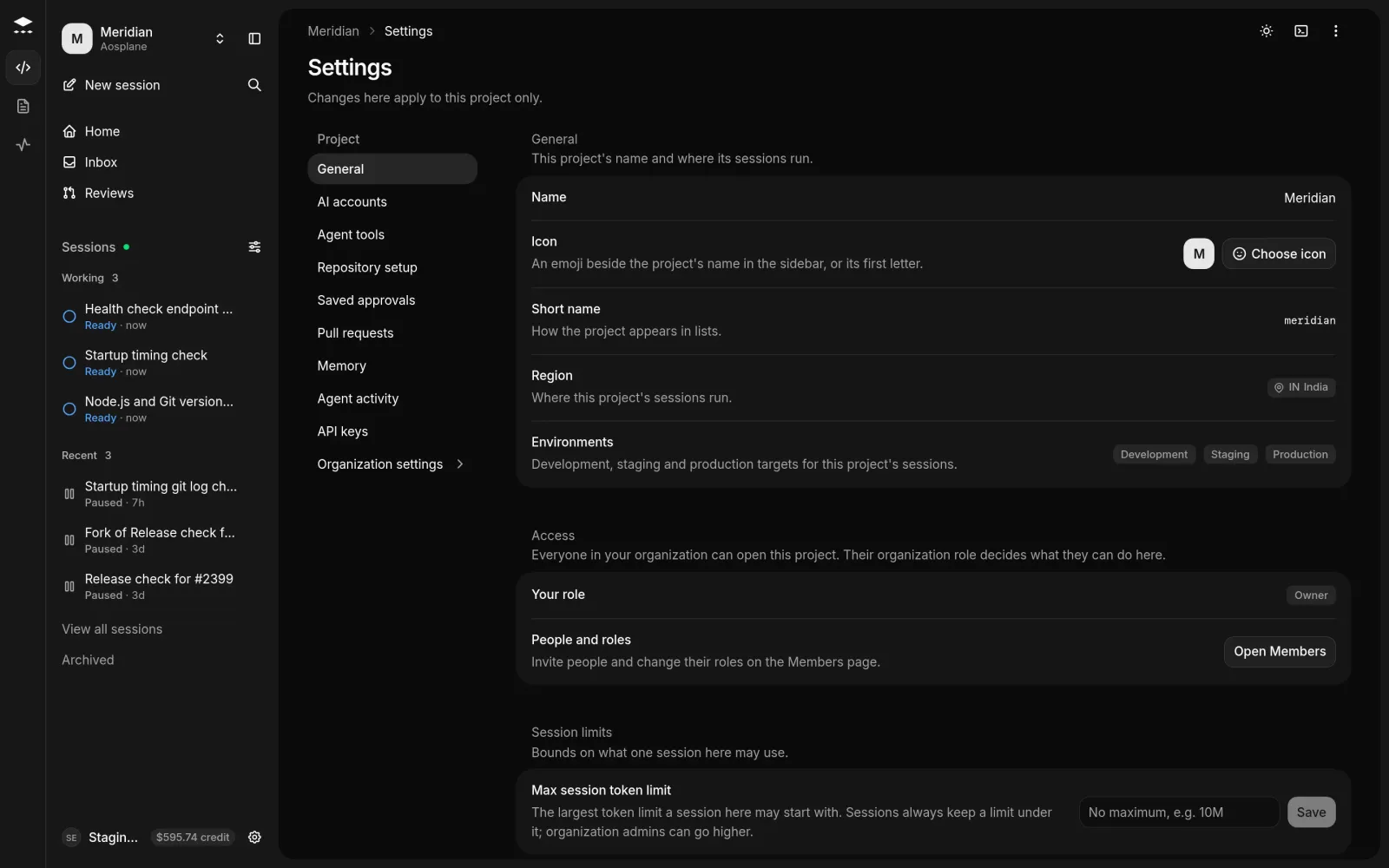
* **General**: the **Name**, **Icon** (an emoji shown in the sidebar), **Short name**, **Region** where sessions run, and **Environments**.
* **Access**: your role here, which is your organization role.
* **Session limits**: the **Max session token limit** a session in this project may start with.
* **Issue tools**: where issues handed to AOSplane in [Linear](/linear) start sessions.
The menu also has **AI accounts**, **Agent tools**, **Repository setup**, **Saved approvals**, **Pull requests**, **Memory**, **Agent activity** and **API keys**, and **Organization settings** to go up a level.
## Good to know
* Only owners and admins can set a project's **Icon** and **Max session token limit**, and only they can go above it.
* You choose a project's name and region when you create it. They can't be changed afterwards in the dashboard.
* Viewers and Billing don't see **Agent tools** or **Repository setup** in project settings.
## Related
* [Members and roles](/members)
* [Billing and plans](/billing)
* [Audit logs](/audit-logs)